Tag: YouTube

  • Steps to Activate Official YouTube Dark Mode

    Steps to Activate Official YouTube Dark Mode

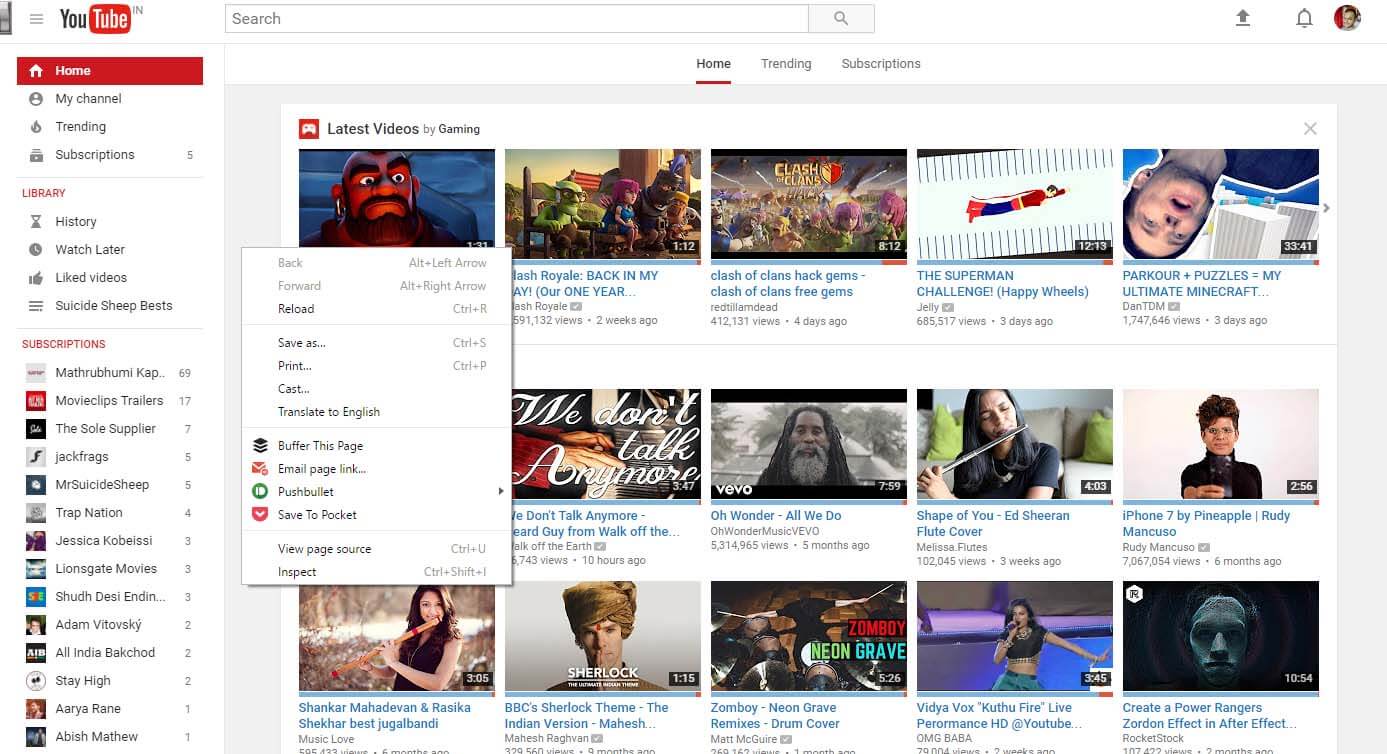
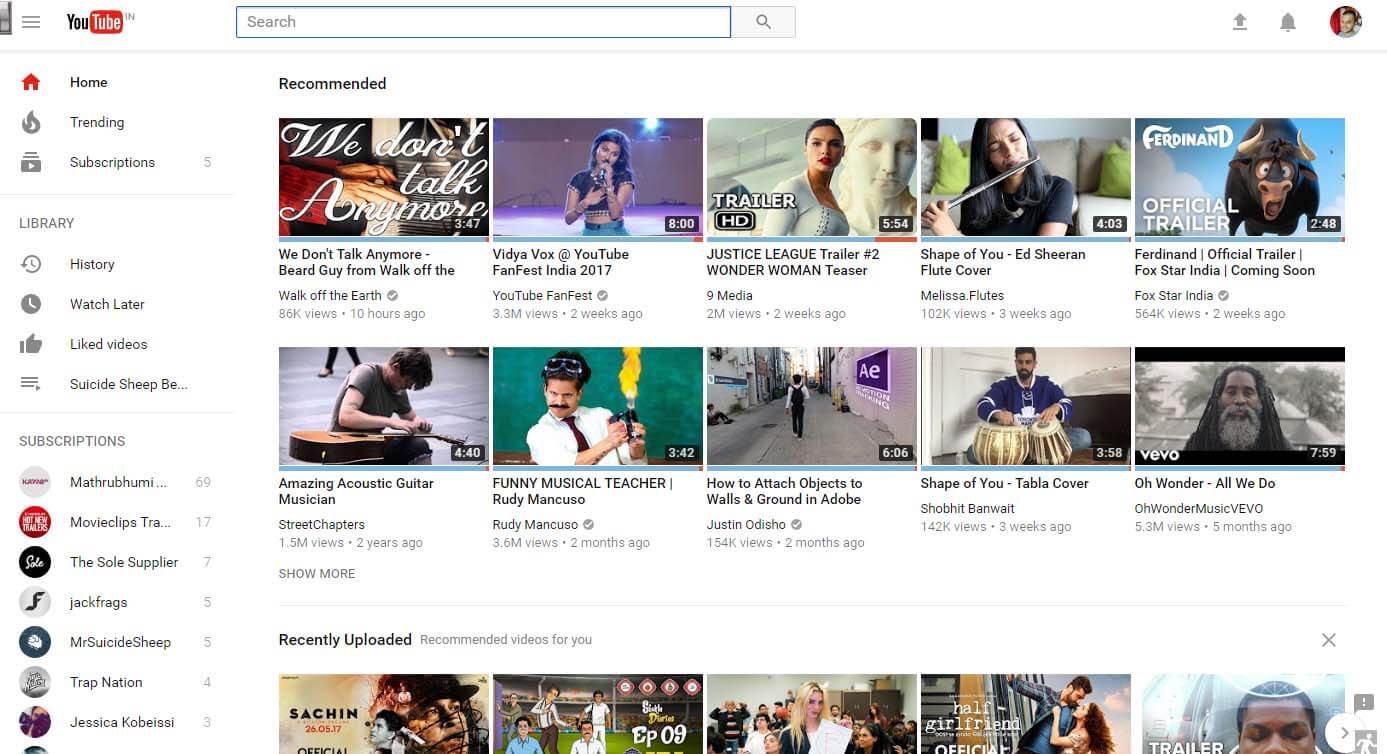
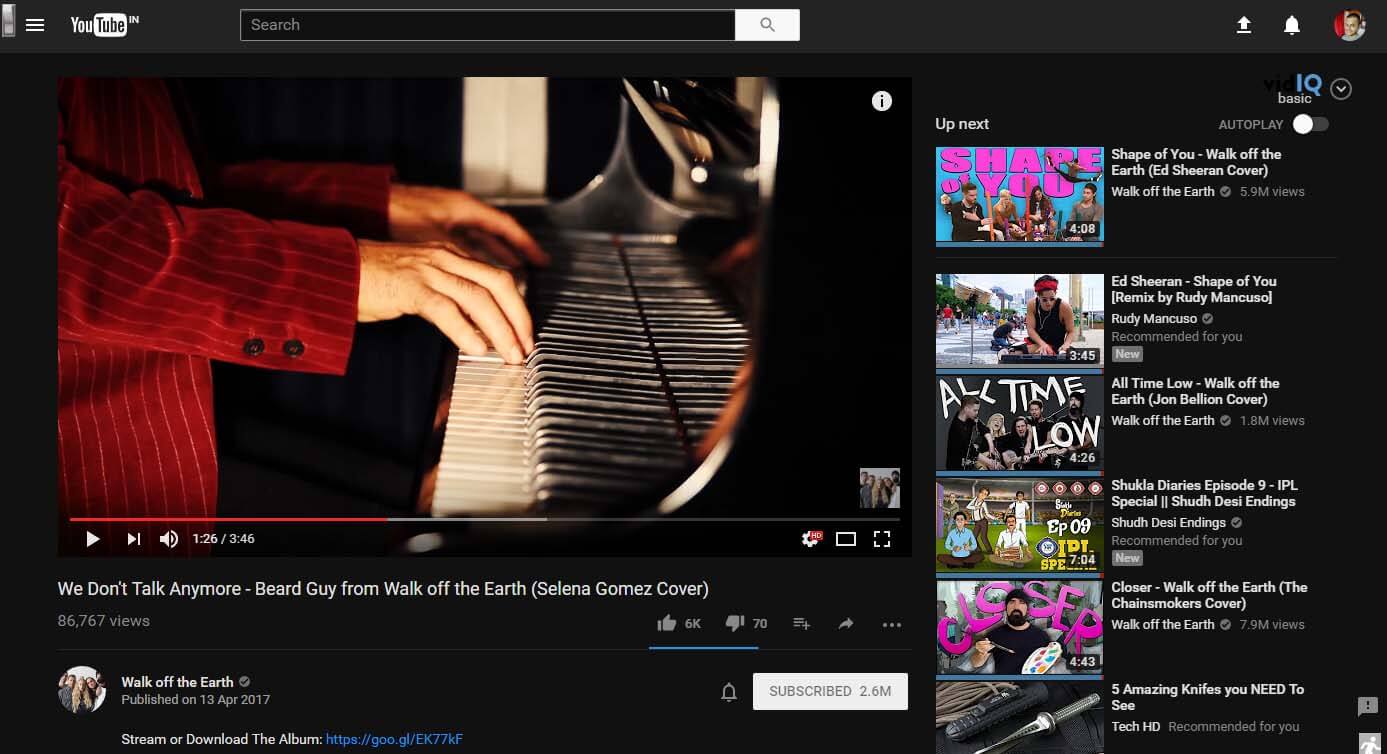
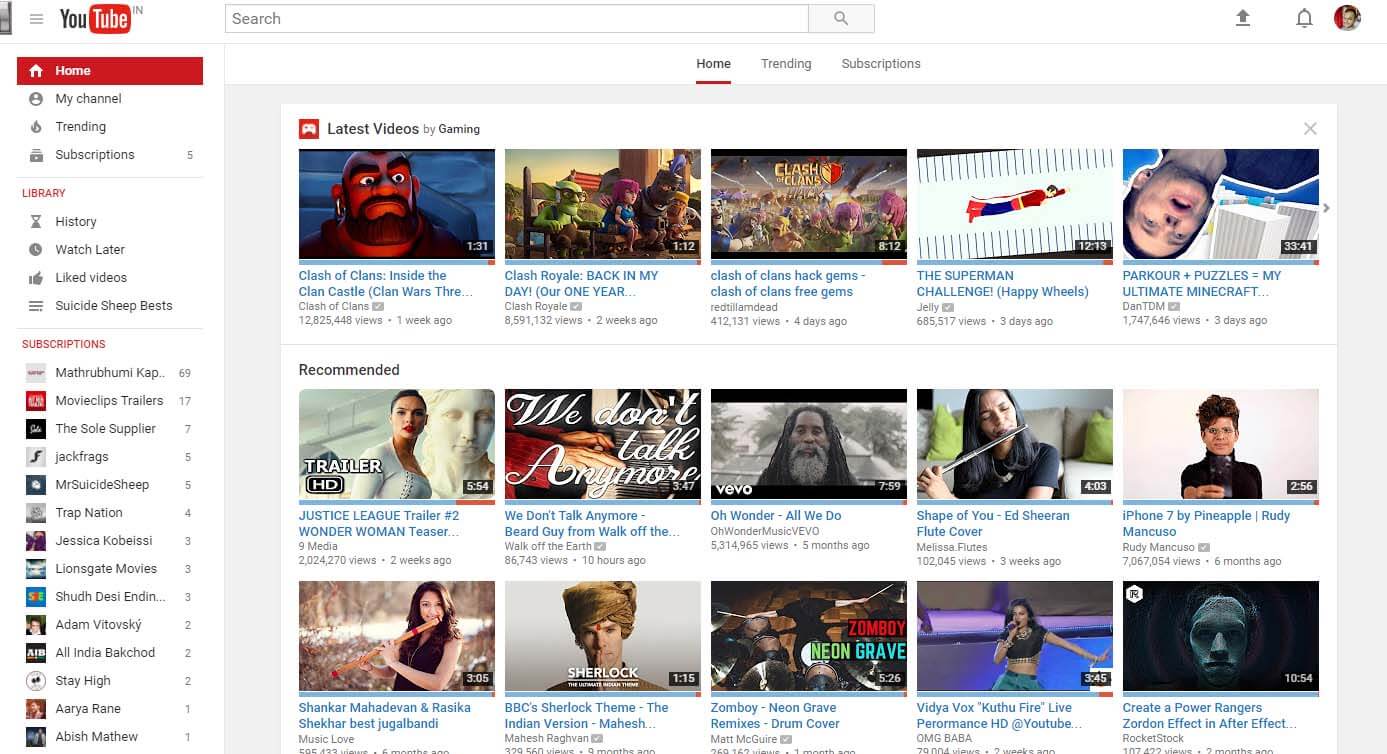
    Current YouTube UI

    I’ve been using the dark version YouTube for a long time with the help of a chrome extension called Magic Actions for YouTube. Magic Actions is an amazing extension, you can tweak YouTube a lot. Not going to talk about the extension but do try it.

    YouTube is constantly working on improving our viewing experience and most of the features are in beta. But today @ow with the help of @keesplattel discovered a way to enable YouTube dark mode officially. Along with dark mode, you get a new interface as well. I’ve seen this interface while using a friend’s YouTube account, it was a browser specific UI, the same account had a different UI when I tried it from a different account.

    Now let’s get the new UI and the new dark mode.

    1. Open console by right clicking anywhere in the viewport of the browser and click on Inspect or press the keys Ctrl+Shift+I


    2. Paste document.cookie=”VISITOR_INFO1_LIVE=fPQ4jCL6EiE” into the console and press Enter

    Steps to Activate Official YouTube Dark Mode - 06 -Viral Media Today


    3. Reload, you can see that you already have the new UI.


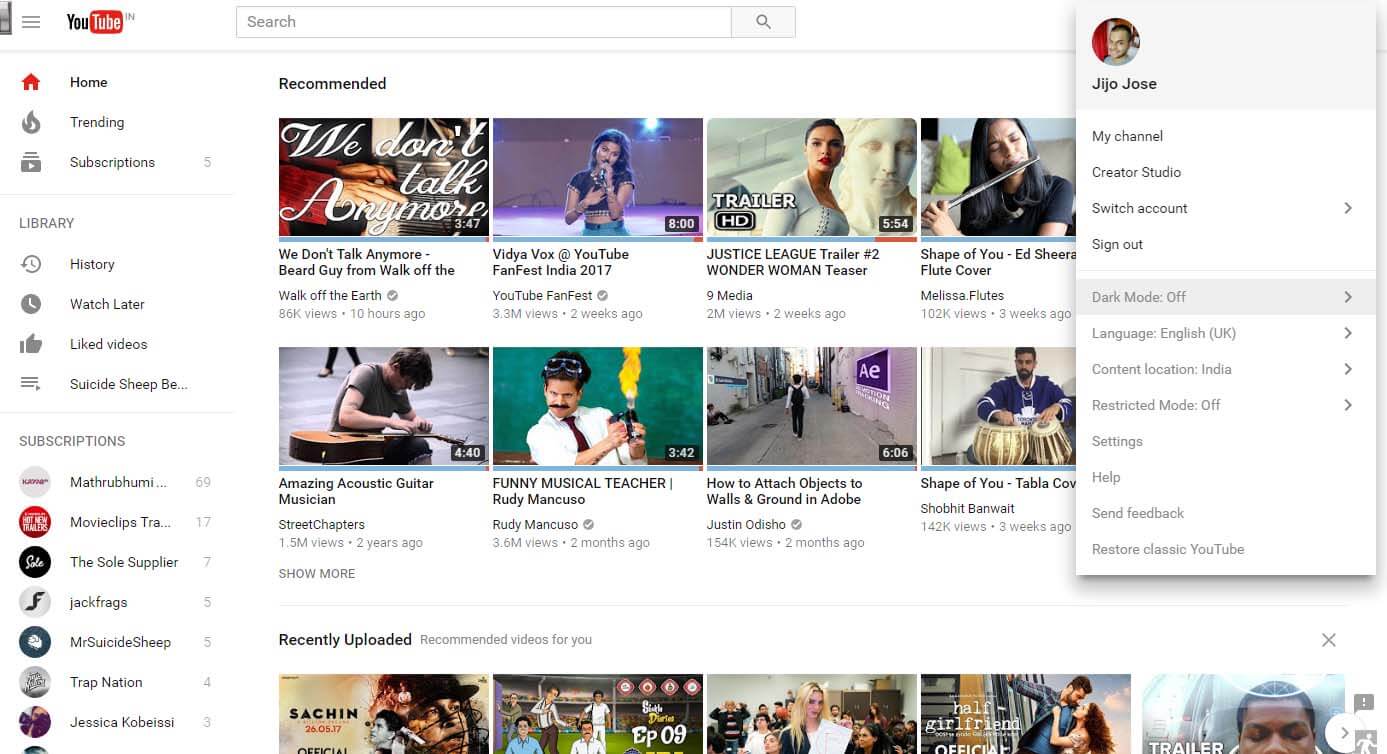
    4. Click your avatar and from the dropdown click on Dark More: Off and enable it. 


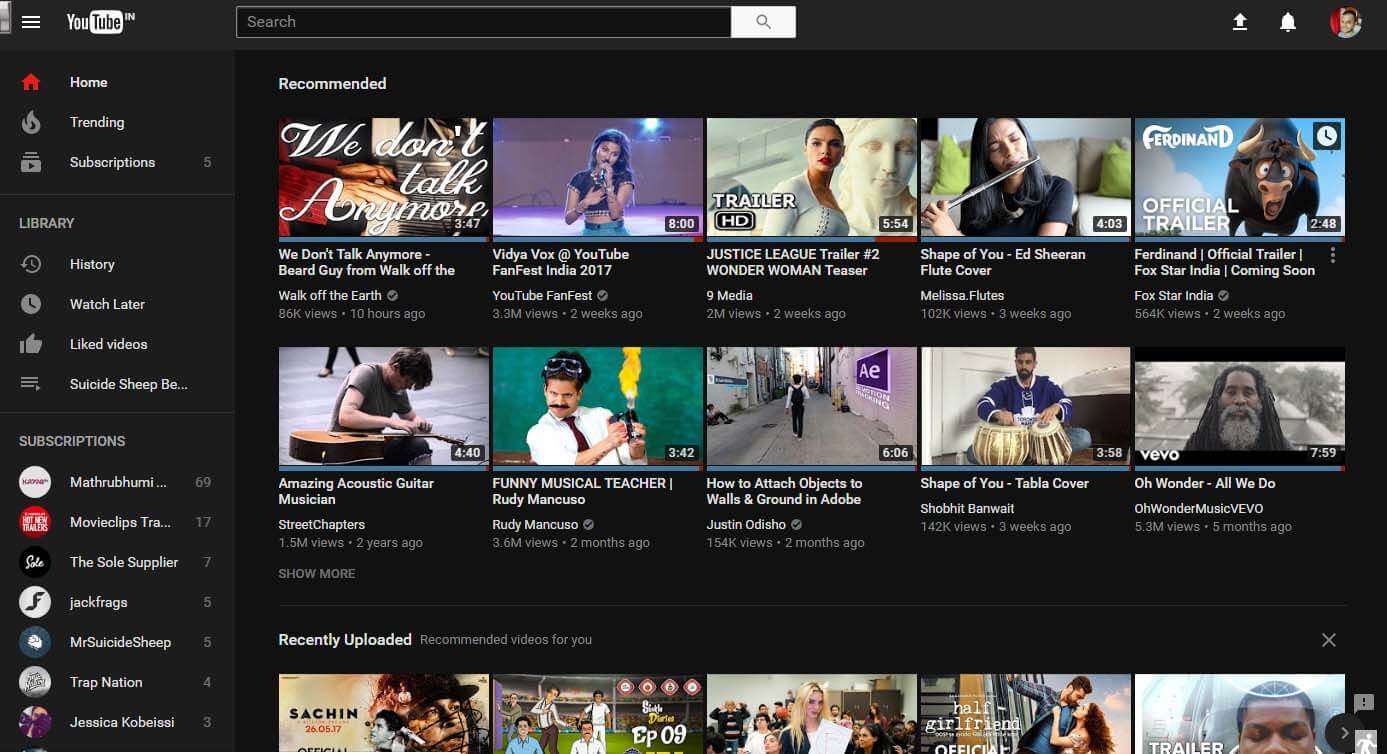
    5. Dark mode enabled, Enjoy!

    How to Activate Official Dark Mode in YouTube - 05 - Viral Media Today

    TLDR;

  • Can YouTube Views, Comments & Subscribers Sellers Be Trusted?

    Can YouTube Views, Comments & Subscribers Sellers Be Trusted?

    Videos are taking over our online life, from cute cat videos to professional business explainers. A recent study by CISCO showed that by 2019, 80% of the world’s internet traffic will be video. YouTube is the biggest player in the online video market followed by Facebook. YouTube is forecast to record 3 trillion video views during 2015; in contrast, Facebook’s video views are estimated to reach 2 trillion during the year, according to a study by Clickz. So if you haven’t started using videos for your marketing, it’s high time to join the party. It’s not easy to start video marketing, as it involves many steps like pre-production, production, post-production and finally taking it to your potential customers(marketing).

    In this article I’m going to talk about the last step, ‘marketing’. So how do you promote your videos and boost its viewership? You can always share it with your potential customers directly via email, Facebook, Twitter, etc. But what about those customers whose details you don’t have? Well, let YouTube take care of that for you. YouTube will show your video as suggested video to viewers if YouTube thinks that the person might find your video interesting or useful. Google, YouTube’s parent company believes in user experience and always tries to serve it’s users relevant content across all the products.

    YouTube Mobile - Can YouTube Views, Comments & Subscribers Sellers Be Trusted - Viral Media Today

    For example, if you are a sports shoe retailer and you made a video about your shoe business. Your target would be athletes or anyone who plays a physical game. Once you upload your video on YouTube with relevant tags, a good title, and a good description, YouTube will start showing your video to users who watch similar videos like yours.

    But wait! They are millions of videos out there which are similar to yours. So what factors are considered when YouTube suggests a video? YouTube looks for couple things in a video for suggesting other than Title, tags and description. They look into the number of views and audience retention ratio. Every marketer struggles to keep a good ratio of views and audience retention. Business with good social media following won’t have to worry much but start-ups won’t be able to garner many views in the beginning. This is where YouTube views sellers come in handy. There are thousands of sellers out there, some of them are cheap, some are costly and some are frauds who just take our money and disappear.

    I’ve been being into video marketing for 2 years now and have came across many YouTube views, comments and subscribers. I never had any issues with subscribers and comment sellers but view sellers in many cases failed to deliver. Most of the time YouTube blocks out these views and in some cases, sellers won’t even try to give us the views.

    Three months back I came across a seller called YouTubeViewsBuy. For testing purposes I purchased the lowest package they had. My jaw dropped when I saw the results, I ordered for 5, 000 views and they delivered 5,532 views within 2 days. My jaws didn’t drop because of the views but because of the retention ratio. When most of the other sellers only view the video for 30 secs, YouTubeViewsBuy delivered views which had a view time of more than 2 mins. Again I brought a higher package to boost more and I got the views as advertised.
    YouTubeBuyViews - Can YouTube View Sellers be trusted - Viral Media Today

    What was the result of this?

    I almost had 1 million views when YouTubeViewsBuy completed their order. But YouTube picked up the video and started showing it in suggestions, right now I get more then 5,000+ views from organic YouTube traffic. All thanks to the boost by YouTubeViewsBuy.

    So yes, some YouTube view seller can be trusted and my only favorite seller is YouTubeViewsBuy. Go head and try them out and let me know how it went.
  • How to Import Catch Notes to Evernote – Steps

    How to Import Catch Notes to Evernote – Steps

    In this quick tutorial I will show you how to export spaces from Catch notes and also how to import it to Evernote.

    Exporting from Catch Notes:

    • Log into your account at Catch.com
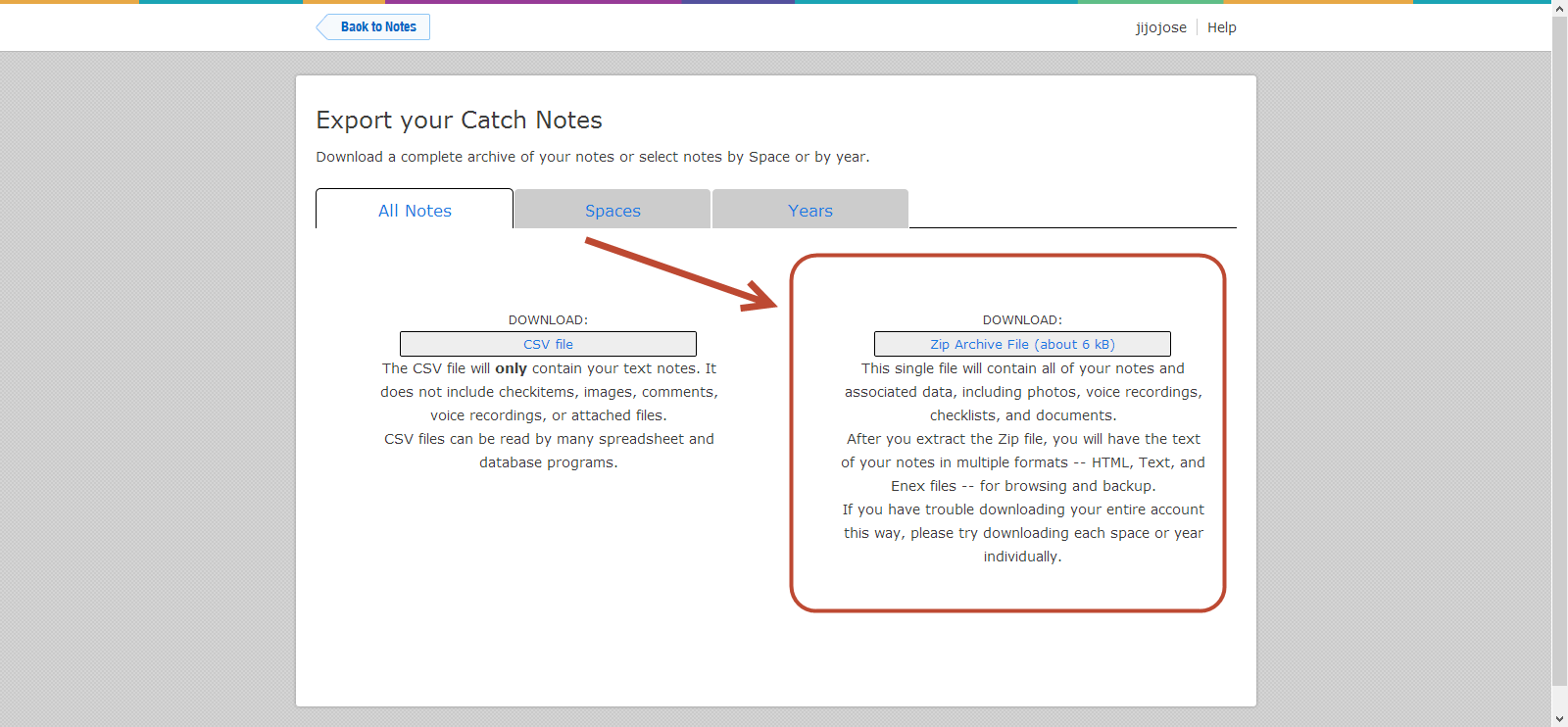
    • ​Go to this link: https://catch.com/tools/export/new (Site Dead)

    The Export Tool is organized into three panels:

    • The first panel provides a way to download all of your content as either a CSV file or a Zip file.
    • The second panel provides a way to download a single space as a Zip file.
    • The third panel provides a way to download all content for a particular year as a Zip file.
    • Select one of the “.zip” methods (not CSV).

    How to Import Catch Notes to Evernote - Steps - Catch Notes 4

    • When you click “Download”, your browser will start downloading the selected content. This can take anywhere from a few minutes to several hours depending on the size of your account and the speed of your Internet connection.
    • Unzip your Catch .zip file
    • Download the Evernote desktop app (Mac or Windows)
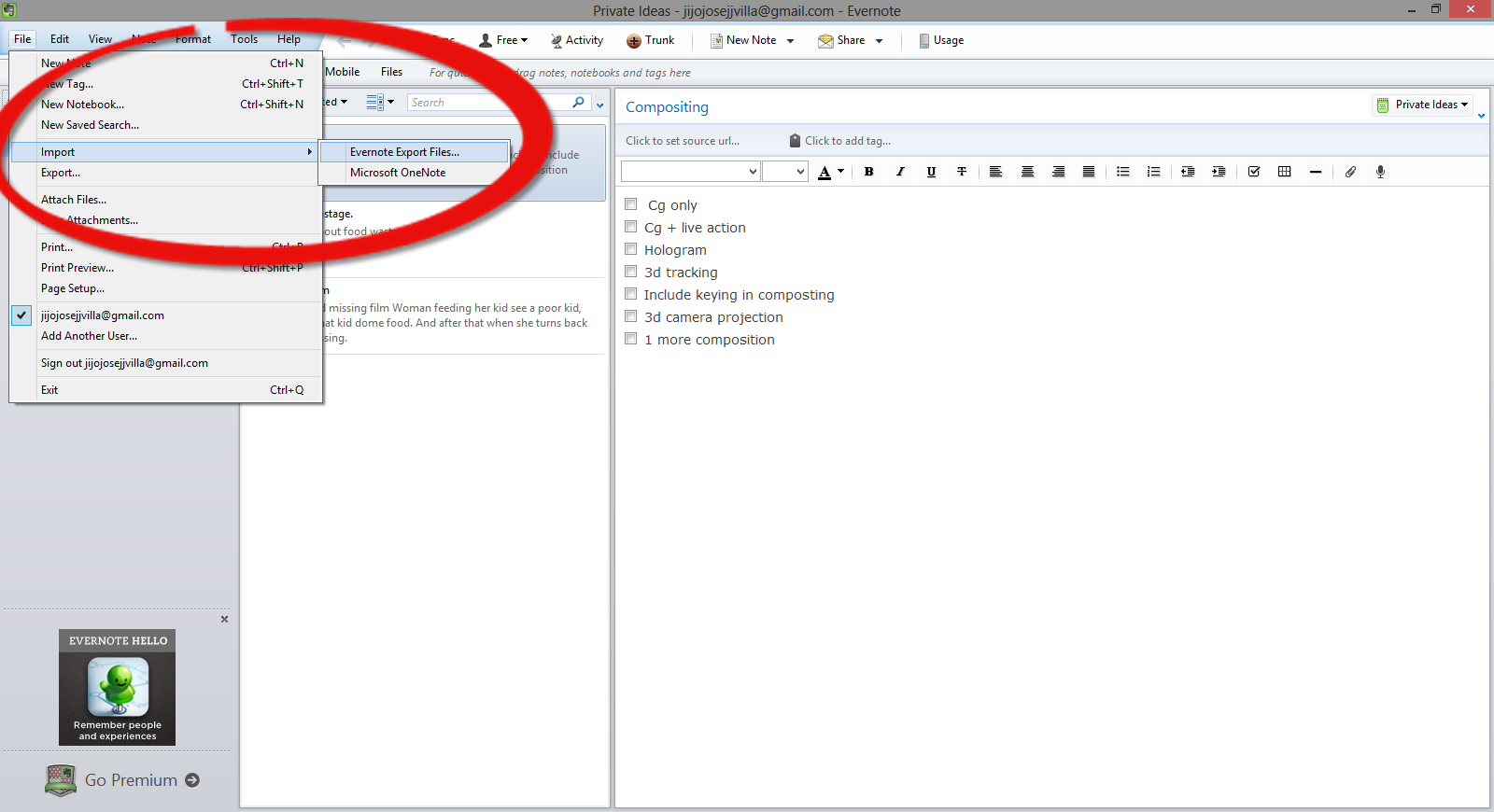
    • Open Evernote app and select, File>Import>Evernote Export Files

    How to Import Catch Notes to Evernote - Steps - Evernotes

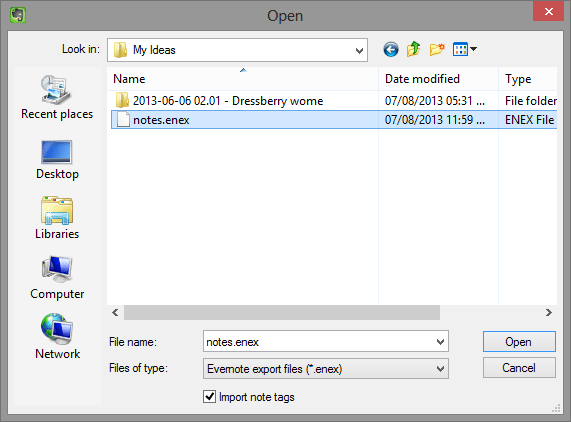
    •  Navigate to the folder where you extracted the Catch Notes.

    How to Import Catch Notes to Evernote - Steps - Evernotes 2

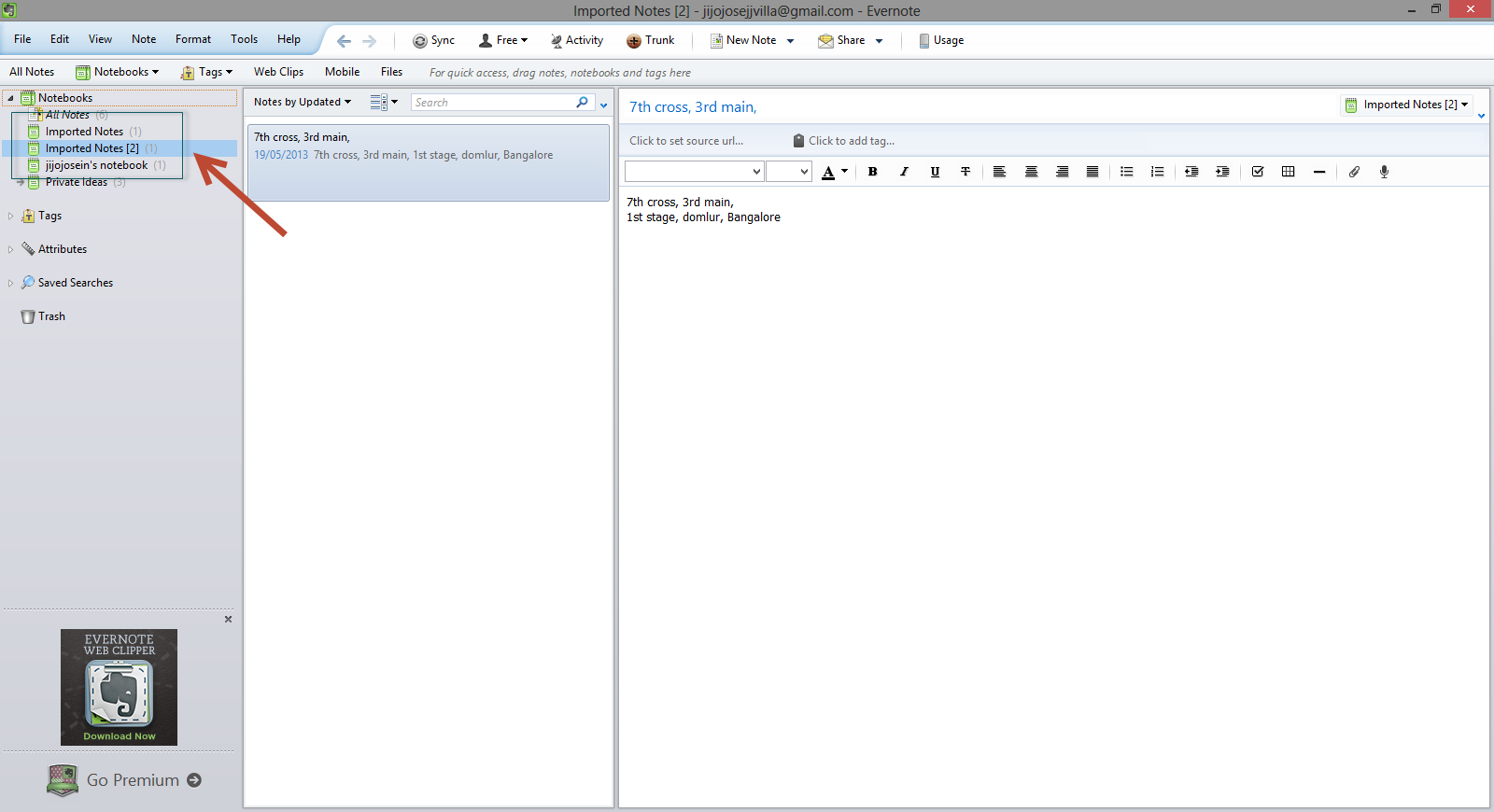
    •  You will find it in Evernote in a new notebook, with the title of “Import Notes.”

    How to Import Catch Notes to Evernot</a srcset=

    Hope this article helped you. If you are new to Evernote and would like to get a premium account, check out our giveaway here.

    Catch Giveaway

  • Get Back ‘Stop Download’ feature on YouTube Videos

    Get Back ‘Stop Download’ feature on YouTube Videos

    Some days back YouTube removed the “Stop Download” feature from their player. They also removed video pre-buffering. In this article I will help you to get the “Stop Download” feature using bookmarklet/userscript.

    How to Stop YouTube Video from Downloading

    Method 1: Bookmarklet

    This is the easiest method and will work on all browsers. (Google Chrome, Mozilla Firefox, Internet Explorer, Apple Safari, etc). To use it, drag and drop the above bookmarklet to your Bookmarks toolbar. To stop a YouTube video while watching, just click on the bookmarklet and the video will stop downloading.

    Stop YouTube Video (bookmarklet)

    Image courtesy: www.thelacunablog.com

    Method 2: Userscript

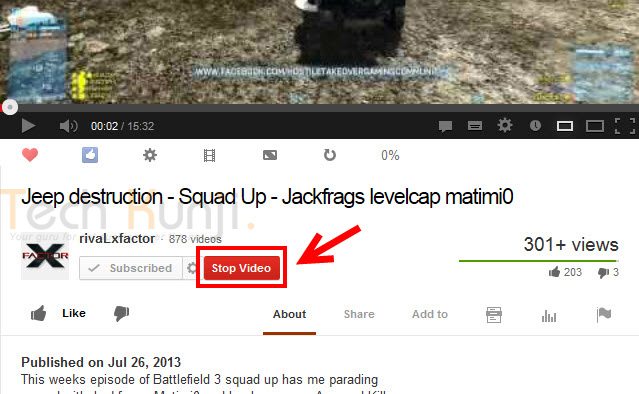
    Userscript will give you a button below your YouTube player to stop the download. Userscript download link is provided below.

    Download

    Stop Youtube Video Downloading

    Steps to install Userscript

    • In Firefox, you will have to install the Greasemonkey add-on. After that, open the userscript page provided above and click on the install button.
    • In Chrome, you need to download the Userscript on your computer by right-clicking the Install icon and select Save link as. Then go to Tools > Extensions, drag the downloaded script into the Extensions page and click install.

    Don’t forget to share this with your friends.

    Via [thelacunablog.com]