Tag: Website

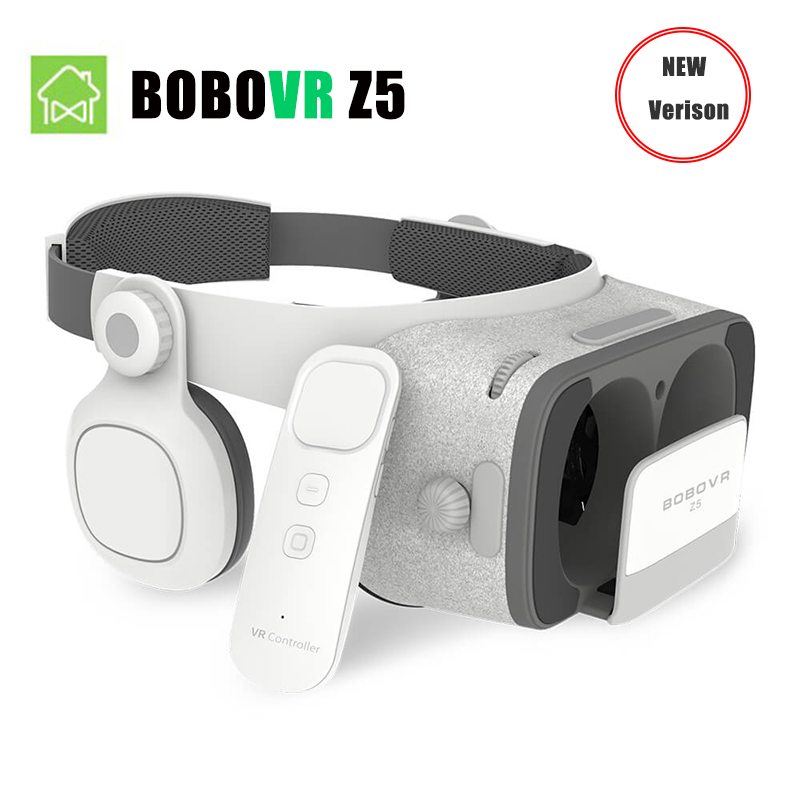
  • Start Your Journey With these Amazing Deals On VR Hardware

    Start Your Journey With these Amazing Deals On VR Hardware

    Start Your Journey With these Amazing Deals On VR Hardware - Viral Media Today

    When I got my first cardboard VR kit I was as excited as the day I got my LEGO kit when I was a child. Cardboard VR’s were a blessing when the mobile VR kits were introduced because the kits were expensive. They were being sold for around $500+ whereas cardboard was not more than $10. This was 4 years back and still now VR headsets being sold for more than $500. I never got a VR headset all these years because it was an evolving tech and I am pretty sure my $500 headset won’t matter after a year because new stuff is coming out daily. So I wanted to wait for sometime. I am not a guy who waits around, I have zero patience but my friend owned an HTC Vive, so I used to use that whenever possible.

    Last month I came across an ad and found a website called The VRShop.co. And it happened, I got my first proper VR headset for mobile. It was so cheap that I was afraid that the quality might not be up to the mark. But to my surprise, the headset was good quality. I also got an HTC VIVE PU Leather Face foam replacement for my friend and he was happy with the quality. Well! They got me, both the products came in good condition and great quality. I have this bad habit of ordering more stuff when I find out a site which had quality stuff for a cheap price. They have listed PlayStation 4 VR and that’s going to be my next purchase along with Playstation VR Bag.

    Start Your Journey With these Amazing Deals On VR Hardware - Viral Media Today 1

    You guys should try them, whether you are new to VR or already own VR headsets. If you don’t want to spend much right now and would like to experience it, you should try the Virtoba V2 Cardboard 2.0, it’s just $9.99 and it will give a similar experience of a normal VR headset. Exclusive discount for our readers. Use the code “Low10” while checking out to get a flat 10% discount. Enjoy!

  • Make an Alumni Association Website with WordPress & BuddyPress: Beginners Guide

    Make an Alumni Association Website with WordPress & BuddyPress: Beginners Guide

    WordPress is one of the best and powerful CMS out there, combine WordPress with BuddyPress, you get your own community website. Social elements in BuddyPress are good and also gives us full control over every element. BuddyPress comes from the same family of WordPress. When we planned to make our school’s alumni association website we contacted  a couple of developers and was shocked by their pricing. We didn’t have a large budget for this. Later I came across BuddyPress and was surprised to see its potential and the great part was it’s free. Everyone loves free stuff.

    In this article I will show you how to install BuddyPress and set up an alumni site. I am assuming that you have a server and you have installed WordPress. This article will start from installing BuddyPress, so if you don’t have a WordPress installed server, head over to BitNami. They will help you set up a server on your computer locally. Will explain about that in another article.

    Let’s Begin.

    1. Installing BuddyPress
    Make an Alumni Association Website with WordPress & BuddyPress: Beginners Guide: Viral Media Today
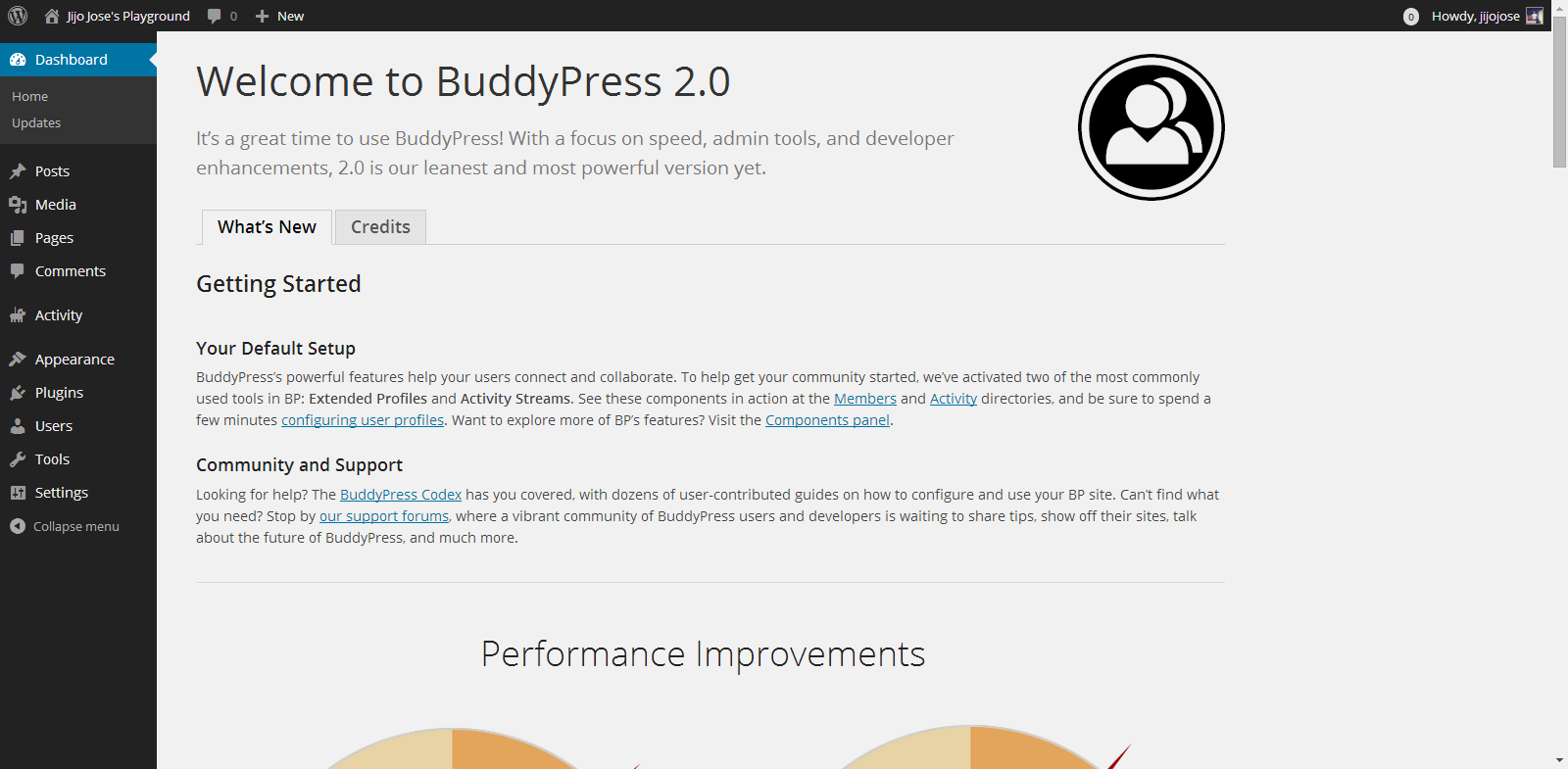
    You can download BuddyPress from WordPress Plugin repository or from the BuddyPress official website. Or directly download it to your WordPress installation by going to plugins from your website back-end. (Plugins>Install Plugins). Activate the plugin. Once activated you will get the above screen.

    2. Selecting the components
    Make an Alumni Association Website with WordPress & BuddyPress: Beginners Guide: Viral Media Today
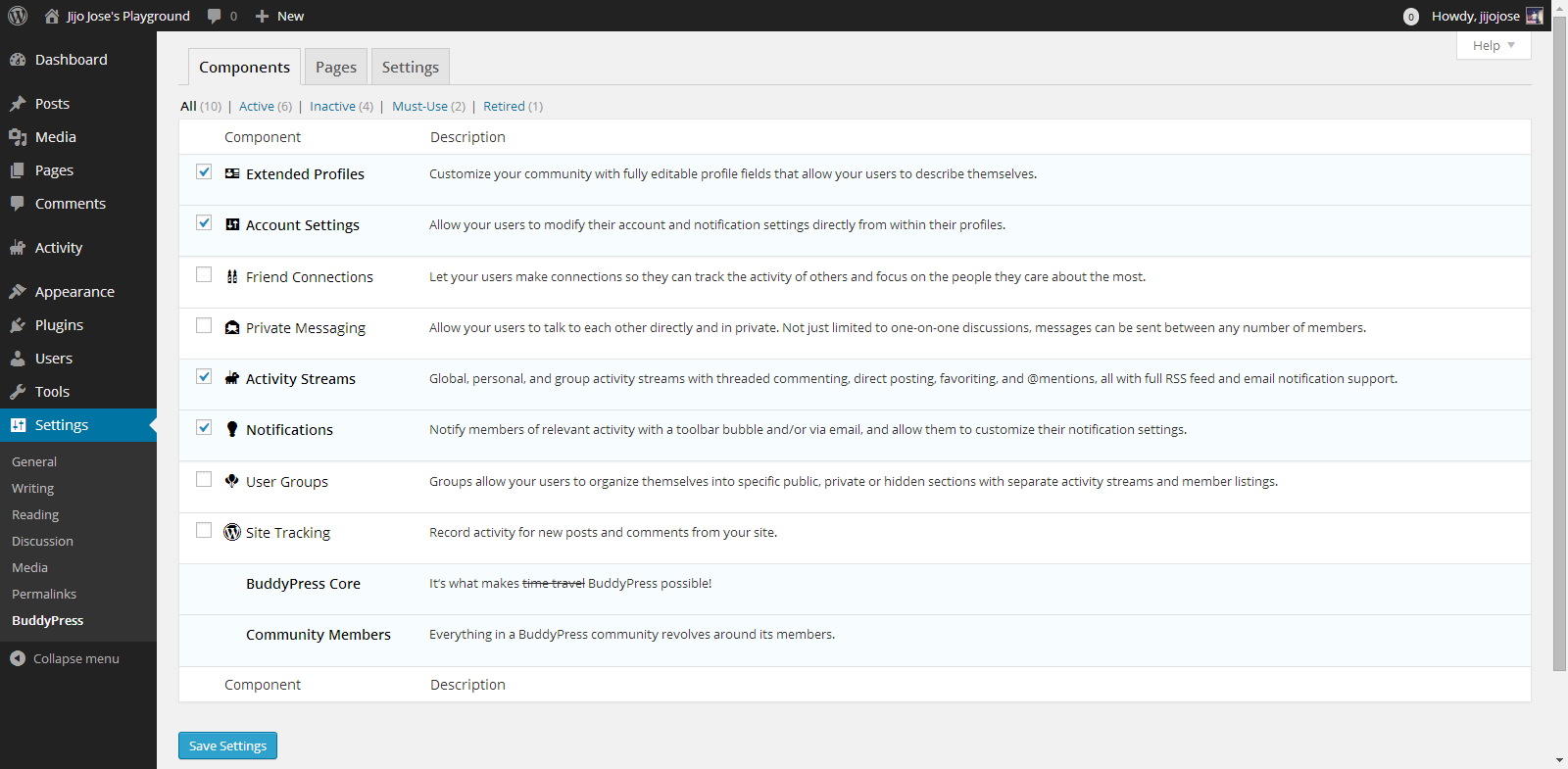
    Go to Settings>BuddyPress
    Choose what components you want to use in your BuddyPress installation. In other words what all services do you want to run on your alumni association website. Each component has a pretty neat description on the right side that will help you in selecting the components.

    3. Creating Pages
    Make an Alumni Association Website with WordPress & BuddyPress: Beginners Guide: Viral Media Today
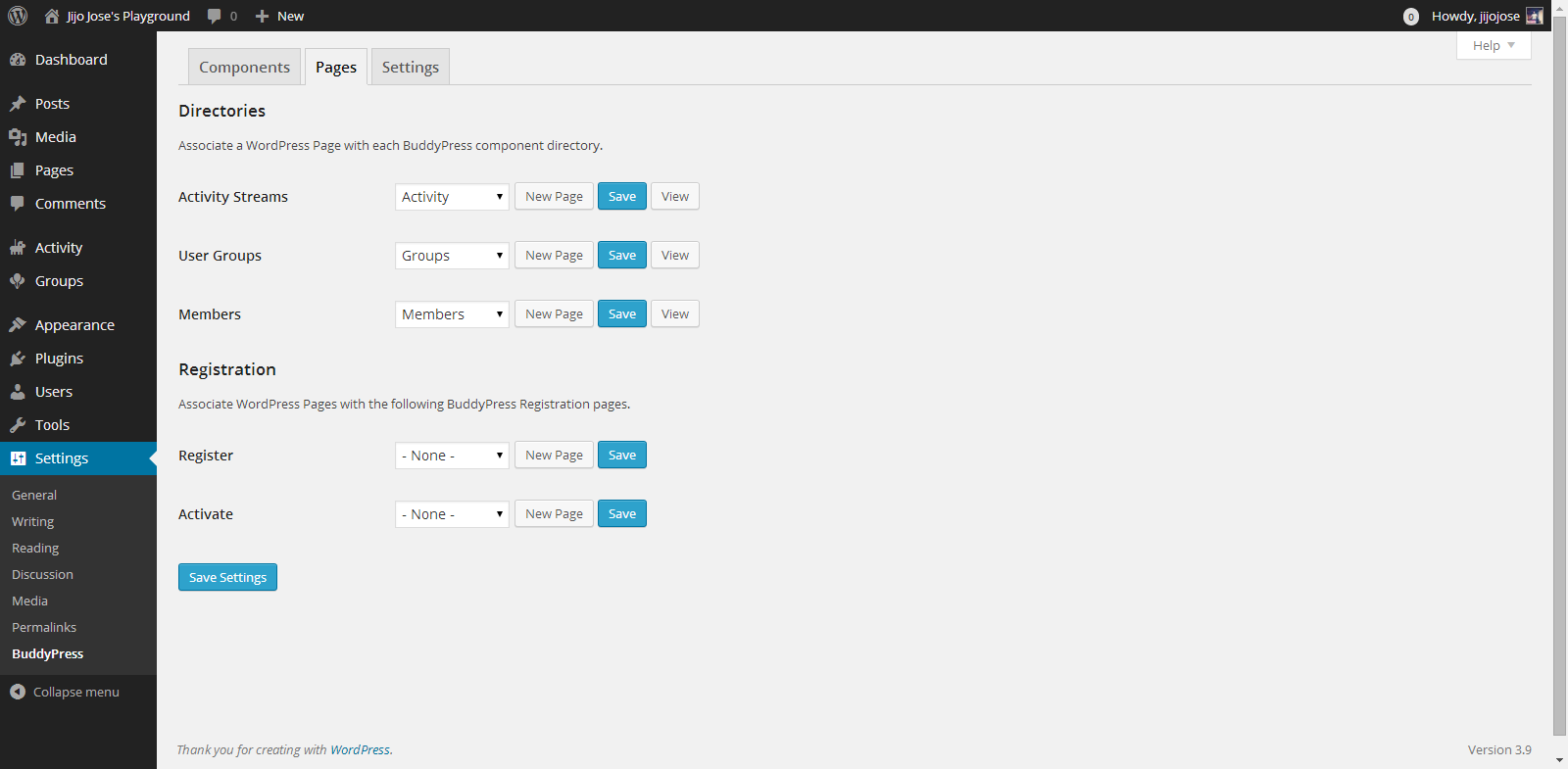
    Go to Settings>BuddyPress>Pages
    This is one of the important steps. In this page we will create and assign some important pages for activity streams, user groups, members page, registration and activation page. Upon activation BuddyPress will create activity streams, user groups and members page, now we will have to create and assign pages for registration and activation page.
    Make an Alumni Association Website with WordPress & BuddyPress: Beginners Guide: Viral Media Today

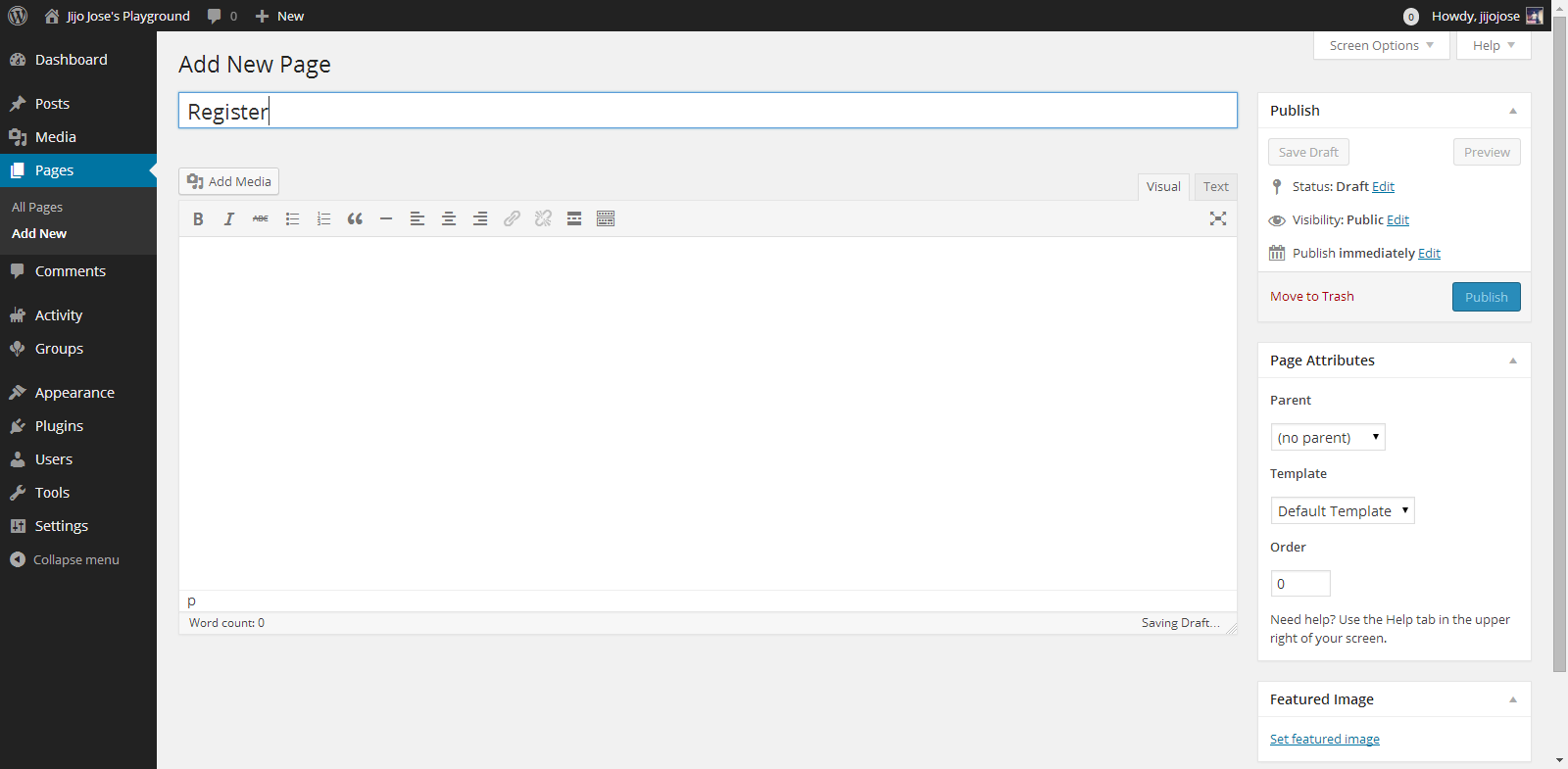
    Click on New Page, you will be taken to “Add New Page“. Create 2 pages, one for Registration page and another for Activate page. Naming the page is up to you. Once you finish creating the pages go back to BuddyPress pages (Settings>BuddyPress>Pages).

    Associate the correct pages for Registration and Activate page and click “Save Settings“.
    Visit the newly created pages and check whether they are working as intended.

    4. Final Tweaks/Settings
    Make an Alumni Association Website with WordPress & BuddyPress: Beginners Guide: Viral Media Today
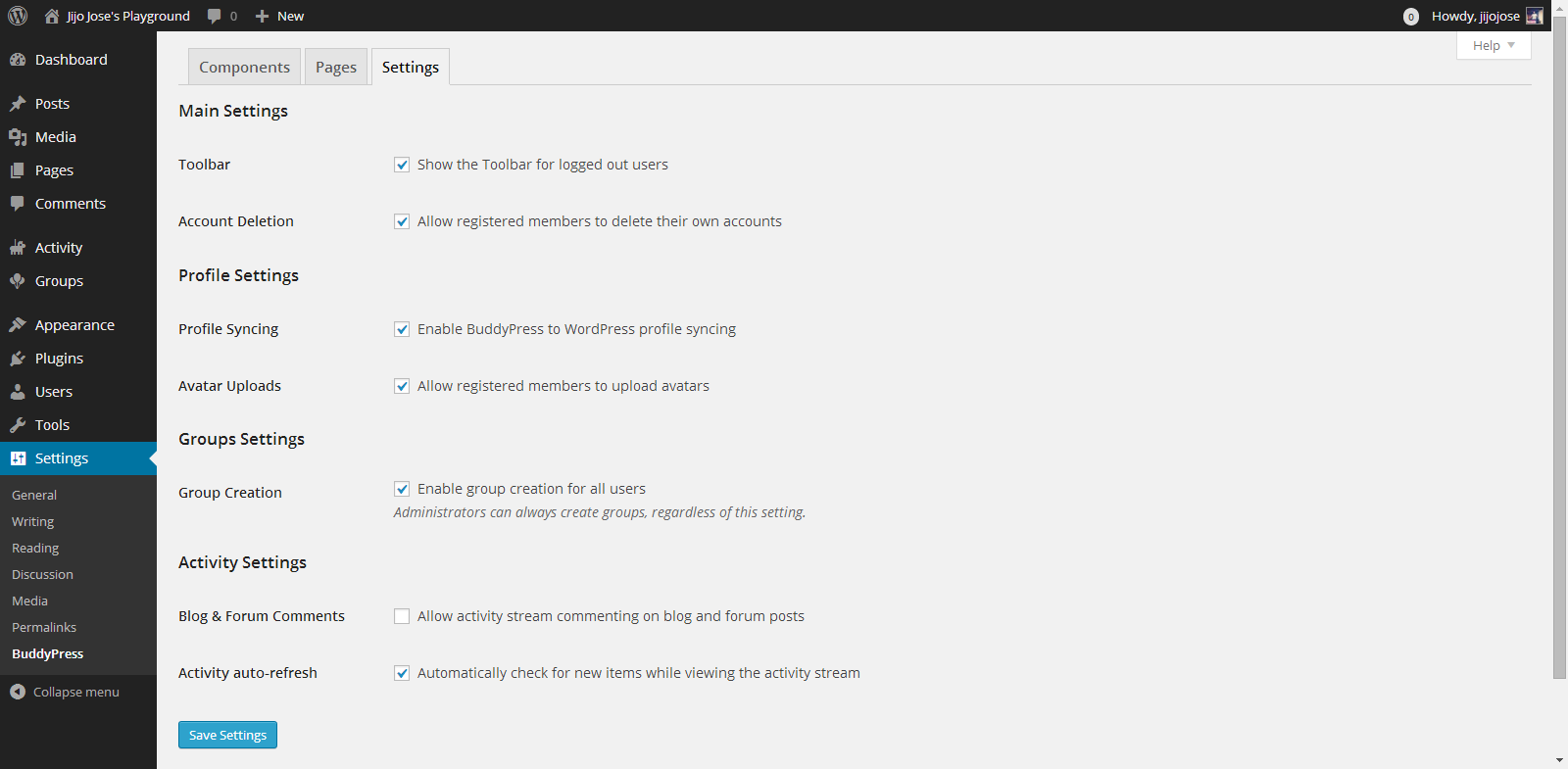
    BuddyPress gives control over how users interact, what they can see and what they can create on the site.
    Go to Settings>BuddyPress>Settings
    Again the developers have done a good job of explaining each option properly.

    Your alumni site is almost ready. An important thing we are missing now is a theme for your site. The default theme is not optimized for BuddyPress. Although everything looks clean if you check the site, but you are missing lots of features. An optimized theme will give your users a good experience.

    5. Selecting a BuddyPress theme

    You either can get a free BuddyPress compatible theme from the WordPress theme directory or Buy premium themes from any WordPress theme marketplace. I’ve tested some premium themes, you can read about some premium themes on this article.

    For now let’s use some free themes from the WordPress themes directory. Head over to “Appearance > Themes“. Click on “Add New” and in the filter section, select “BuddyPress”, hit “Apply Filters“.
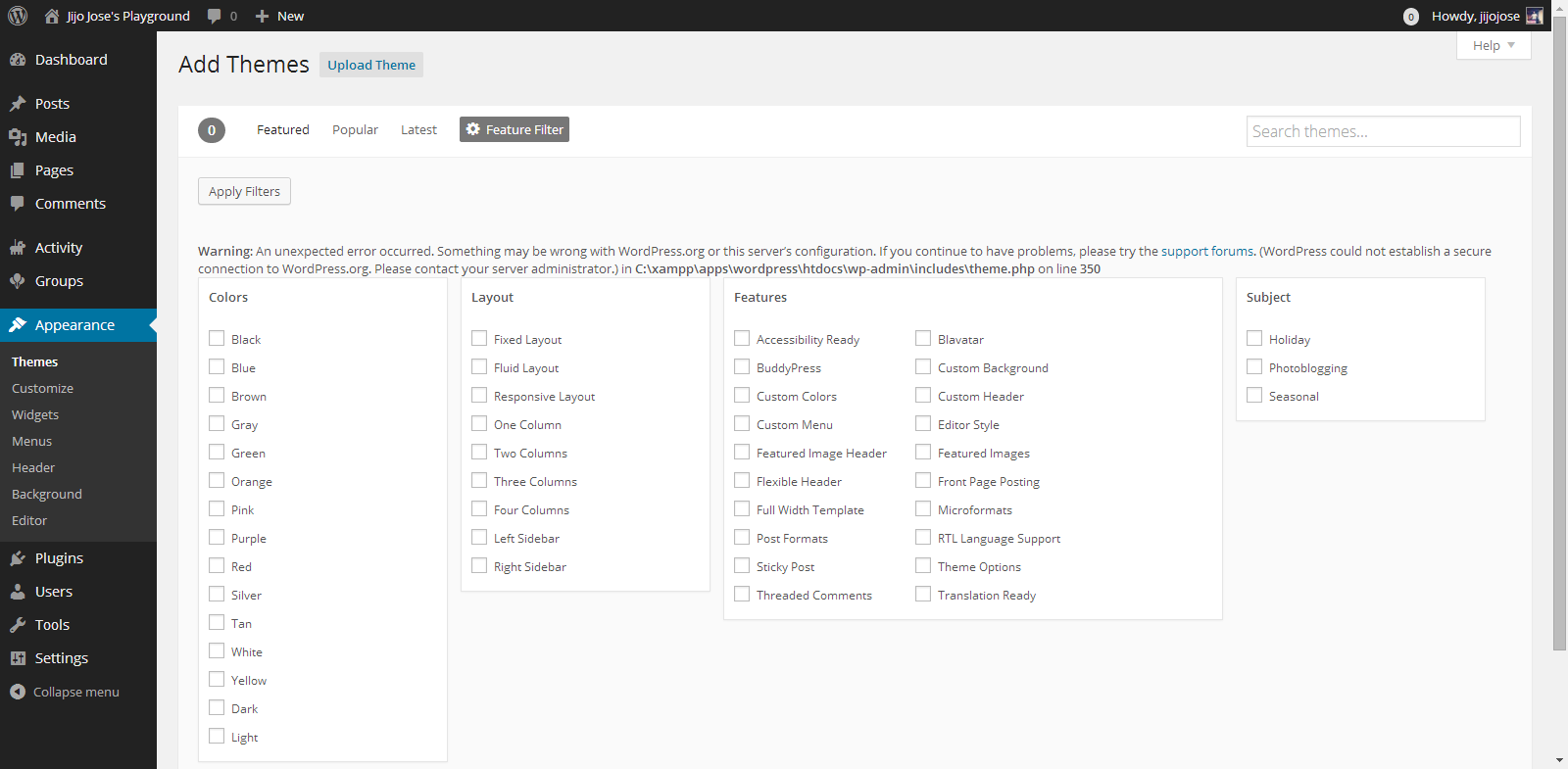
    Make an Alumni Association Website with WordPress & BuddyPress: Beginners Guide: Viral Media Today

    Select a theme you like and apply. You are all ready to go. Before releasing your site to the public ask some of your friends to register and explore the site. Get feedback from them and make tweaks accordingly. Also leave your site address in the comments, I will check out the site and will try to give some suggestions.

    If you get stuck following these steps, let me know and I will personally help you clarify it.

  • 8 Adobe Muse Templates perfect for Landing Pages [2014]

    8 Adobe Muse Templates perfect for Landing Pages [2014]

    Adobe Muse templates have become popular among both coders and designers. Some of the coders hate them too(reason is obvious). For those who don’t know what muse is let me explain.

    Muse is a web page designing software by Adobe. You don’t need to have coding knowledge to make a website using muse. Yes, you read it right. In muse you can place images, contents, etc like you do it in Photoshop and after designing everything in a press of a button, muse will give the HTML code which you can upload to a server.  Muse was around for a long time, but came into the front row recently.

    Recently I published an article giving away a muse template I made and the response was very good. Get the muse template for free here.

    This article is a compilation of 8 Adobe Muse templates which are perfect for landing pages.

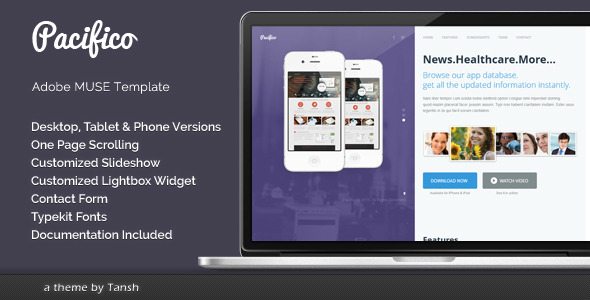
    Pacifico One Page Muse Template

    Pacifico One Page Muse Template Free Download

    Pacifico is one page muse template.

    • Desktop, Tablet and Phone versions
    • Slideshow widget
    • Lightbox widget
    • Contact form
    • Typekit fonts

    [ibs text=”Download” tooltip_text=”” color=”black” icon=”download” border_radius=”small_radius” size=”large” link_url=”http://themeforest.net/item/pacifico-one-page-muse-template/5474711″ link_target=”_blank”] [ibs text=”Live Preview” tooltip_text=”” color=”black” icon=”eye” border_radius=”small_radius” size=”large” link_url=”http://themeforest.net/item/pacifico-one-page-muse-template/full_screen_preview/5474711″ link_target=”_blank”]

    ElectroLine – Event Promo Muse Template

    ElectroLine - Event Promo Muse Template free download

    ElectroLine is the one-page website template with motion and parallax effects created for promoting your dance event, club party or festival. It is fully customizable template. You can edit each and every part of this template.

    Features

    • One page design
    • Desktop version
    • Clean and simple design
    • Well organized and easy to edit
    • Quick colors change
    • Parallax Effects
    • Google map
    • Contact form
    • Typekit fonts

    [ibs text=”Download” tooltip_text=”” color=”black” icon=”download” border_radius=”small_radius” size=”large” link_url=”http://themeforest.net/item/electroline-event-promo-muse-template/6815005″ link_target=”_blank”] [ibs text=”Live Preview” tooltip_text=”” color=”black” icon=”eye” border_radius=”small_radius” size=”large” link_url=”http://themeforest.net/item/electroline-event-promo-muse-template/full_screen_preview/6815005″ link_target=”_blank”]

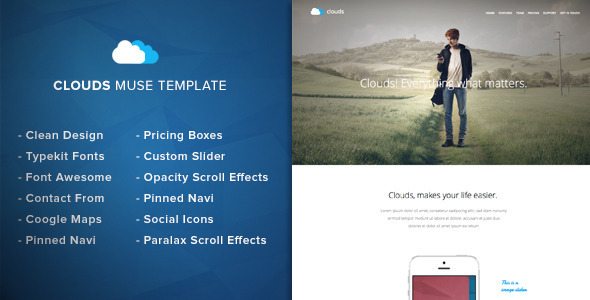
    Clouds – Adobe Muse Template

    Clouds - Adobe Muse Template free download

    Clouds – Muse Template is a clean & fresh adobe muse template designed for any app showcase or app landing page. You can change colors, texts or replace the images in a few minutes.

    Some Info

    • Parallax Scroll Motion Effects
    • Opacity Scroll Effects
    • Typekit Fonts
    • Pinned Navigation
    • Image slider
    • Google Maps
    • Font Awesome
    • Clean Design
    • Contact Form
    • Easy Customization
    • Looks Great On Mobile And Tablat

    [ibs text=”Download” tooltip_text=”” color=”black” icon=”download” border_radius=”small_radius” size=”large” link_url=”http://themeforest.net/item/clouds-adobe-muse-template/6783520″ link_target=”_blank”] [ibs text=”Live Preview” tooltip_text=”” color=”black” icon=”eye” border_radius=”small_radius” size=”large” link_url=”http://themeforest.net/item/clouds-adobe-muse-template/full_screen_preview/6783520″ link_target=”_blank”]

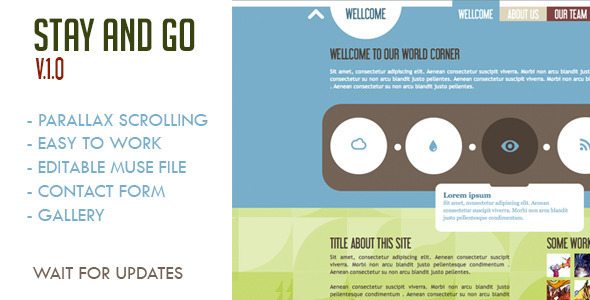
    Stay and Go Muse Template

    Stay and Go Muse Template free download

    Muse Template: Stay and Go
    – Parallax Scrolling
    Text editable
    – Contact Form
    – Gallery

    [ibs text=”Download” tooltip_text=”” color=”black” icon=”download” border_radius=”small_radius” size=”large” link_url=”http://themeforest.net/item/stay-and-go-muse-template/5400448 link_target=”_blank”] [ibs text=”Live Preview” tooltip_text=”” color=”black” icon=”eye” border_radius=”small_radius” size=”large” link_url=”http://themeforest.net/item/stay-and-go-muse-template/full_screen_preview/5400448″ link_target=”_blank”]

  • Top 25 Worst Passwords of 2013

    Top 25 Worst Passwords of 2013

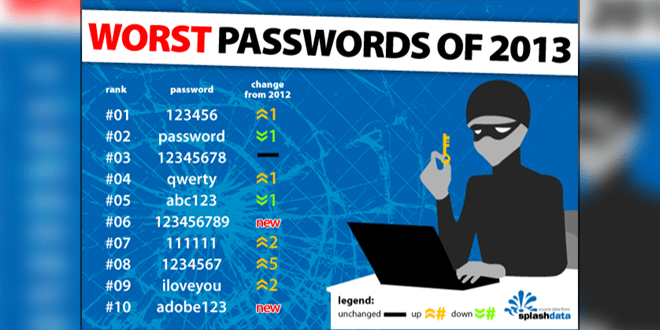
    SplashData has revealed their annual “Worst Passwords” list for 2013. They have published 25 worst passwords and also added that 2013 was the year which saw the most cyber crime. 123456, password, 12345678, qwerty and abc123 are the 5 top most worst passwords on the list. SplashData used the data from adobe’s breach few months back.

    Below, check out the 25 worst passwords.

    1. 123456

    2. password

    3. 12345678

    4. qwerty

    5. abc123

    6. 123456789

    7. 111111

    8. 1234567

    9. iloveyou

    10. adobe123

    11. 123123

    12. admin

    13. 1234567890

    14. letmein

    15. photoshop

    16. 1234

    17. monkey

    18. shadow

    19. sunshine

    20. 12345

    21. password1

    22. princess

    23. azerty

    24. trustno1

    25. 000000

    If your password is the above list, it’s time to change it. 🙂

    Source: SplashData

  • WordPress Themes for Alumni Association Website

    WordPress Themes for Alumni Association Website

    WordPress is a great platform to set up an Alumni Association Community website. There are only few WordPress – BuddyPress themes with all the functionality which a community based website needs. Check out some cool themes below. You will really love them, these are hand picked by me.

    You can check out the Alumni site I created with BuddyPress, and WordPress here (Site dead).

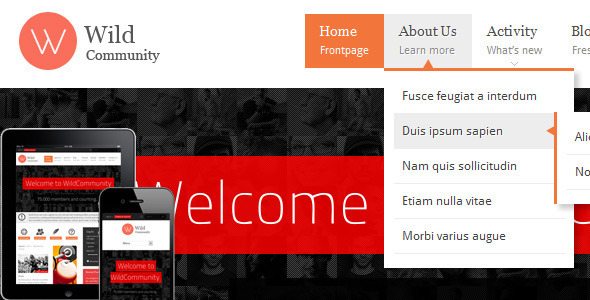
    wilcommunity buddypress alumni free theme

    WildCommunity is an amazing theme, I use it on one of my Alumni Site i created.

    Theme Description:
    WildCommunity theme is integrated with a BuddyPress plugin which lets users register on your site and start creating profiles, posting messages, making connections, creating and interacting in groups and much more. A social network in a box, BuddyPress lets you build a social network for your company, school, sports team or niche community.

    [button color=”black” size=”medium” link=”http://themeforest.net/item/wildcommunity-buddypress-theme/full_screen_preview/3146452?ref=jijojose” target=”blank” ]Demo[/button] [button color=”black” size=”medium” link=”http://themeforest.net/item/wildcommunity-buddypress-theme/3146452?ref=jijojose” target=”blank” ]download[/button]

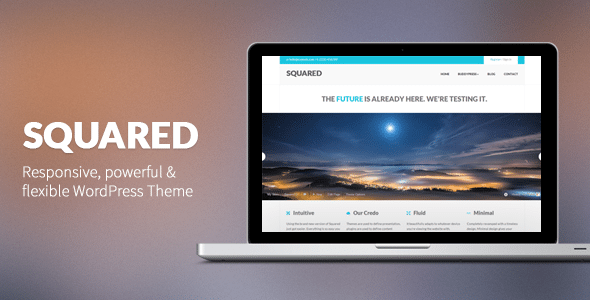
    squared buddypress wordpress free theme download

    Squared 2 is an incredibly powerful, super flexible and ultra responsive WordPress theme. Squared was built just for you, this is the one that you’re looking for, a theme to help you achieve a unique look & feel, while having the right tools to leverage so much power.

    Squared comes with a ton of features & options. Make sure you check out this small description: three fully responsive sliders (LayerSlider WP Plugin), awesome Visual Composer to create your unique layout within minutes, unlimited sidebars, portfolios, tons of shortcodes.

    [button color=”black” size=”medium” link=”http://themeforest.net/item/squared-responsive-wordpress-theme/full_screen_preview/2878672?ref=jijojose” target=”blank” ]Demo[/button] [button color=”black” size=”medium” link=”http://themeforest.net/item/squared-responsive-wordpress-theme/2878672?ref=jijojose” target=”blank” ]Download[/button]

    (more…)

  • Mashable Look alike WordPress Themes

    Mashable Look alike WordPress Themes

    Most of the bloggers are influenced by Mashable’s clean and simple design, especially new bloggers. There are many WordPress which claims as Mashable look alike, but most of them doesn’t even look close to Mashable’s theme. I only could find two look alike. If you find any other Mashable Look alike WordPress Themes, please share it in the comments box and help you fellow readers.

    1. Typegrid – Responsive News & Magazine Theme

    Mashable look alike wordpress theme

    A high-resolution theme for news sites, magazines or blogs that focus on reading experience for all devices – mobile, tablet and desktop. With a polished responsive structure, and thanks to a toggle sidebar for tablet portrait mode, the paragraph width is always kept well-balanced for reading.

    [ibs text=”Live Preview” tooltip_text=”” color=”dark_blue” icon=”eye” border_radius=”small_radius” size=”large” link_url=”http://themeforest.net/item/typegrid-responsive-news-magazine-theme/full_screen_preview/4244060″ link_target=”_blank”] [ibs text=”Download” tooltip_text=”” color=”black” icon=”download” border_radius=”small_radius” size=”large” link_url=”http://themeforest.net/item/typegrid-responsive-news-magazine-theme/4244060″ link_target=”_blank”]

    2. Bayside – Responsive WordPress Theme

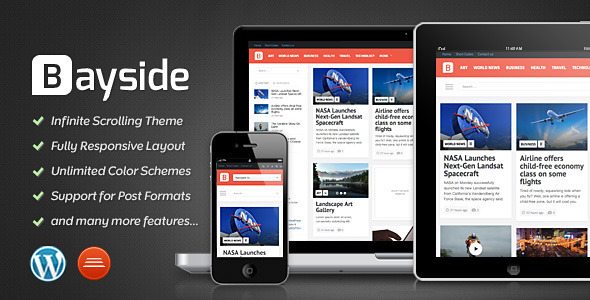
    Mashable look alike wordpress theme

    Unlike Typegrid, this theme has an infinite scroll like Mashable.

    • Unlimited Color Schemes
    • Retina Support
    • Responsive Layout
    • Video Support
    • Video Documentation
    • Translation Ready

    [ibs text=”Live Preview” tooltip_text=”” color=”dark_blue” icon=”eye” border_radius=”small_radius” size=”large” link_url=”http://themeforest.net/item/bayside-responsive-wordpress-theme/full_screen_preview/4071850″ link_target=”_blank”] [ibs text=”Download” tooltip_text=”” color=”black” icon=”download” border_radius=”small_radius” size=”large” link_url=”http://themeforest.net/item/bayside-responsive-wordpress-theme/4071850″ link_target=”_blank”]

    Thank You for reading! Please share if you have found other Mashable look alike themes.

  • Password Protect a Website or Sub-directory: Steps

    Password Protect a Website or Sub-directory: Steps

    Recently I was setting up a back-end admin page for a site and I wanted it to be only accessible by admins. So I came across an article by Chris Coyier on css-tricks.com. But the article was for advanced users. A newbie like me will end up getting errors. I ended up getting 500 Server error and after hours of Googling I was able to set it up properly. Follow the steps below and you will be able to password protect a website or sub-directory in no time.

    Steps:

    Creating .htaccess and .htpasswd files

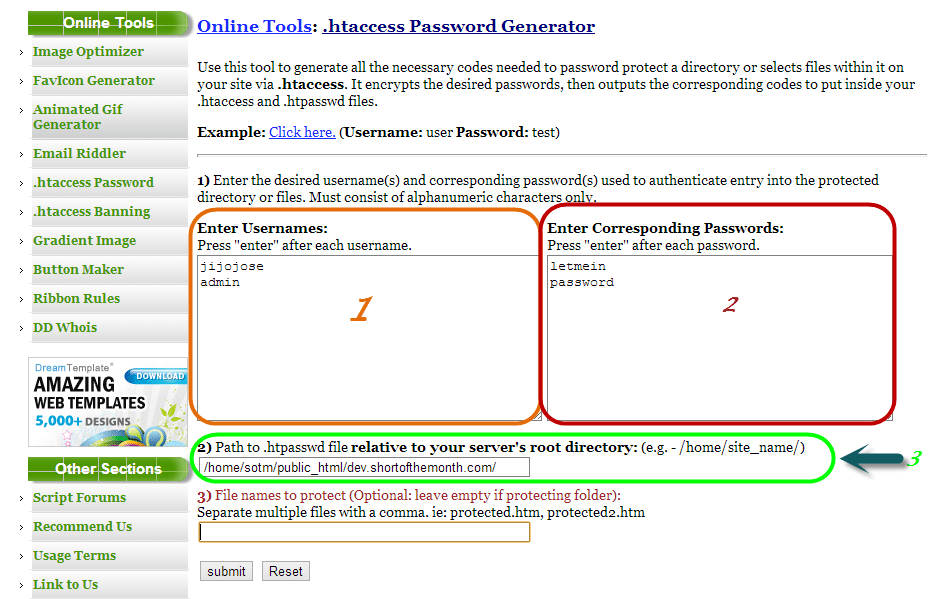
    Visit http://www.tools.dynamicdrive.com/password/ to generate the contents for your .htaccess and .htpasswd files. It’s a free online .htaccess Password Generator.

    password protect website

    1. Enter usernames, one per line
    2. Enter passwords for the usernames on the left
    3. Enter filepath where you will be storing your .htpasswd (If you don’t know the filepath, read the end of the article).
    4. Submit

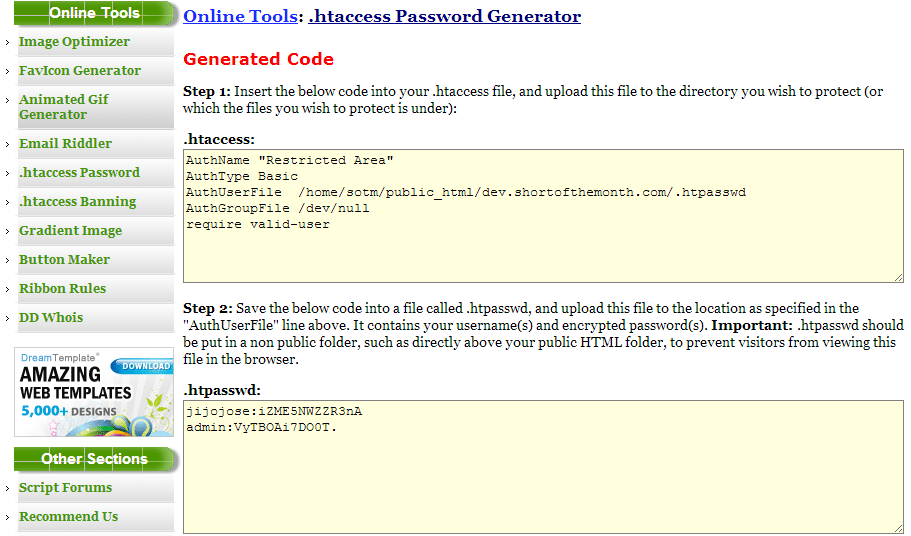
    After submitting you will get a page with your .htaccess and .htpasswd codes.

    htacces password generator

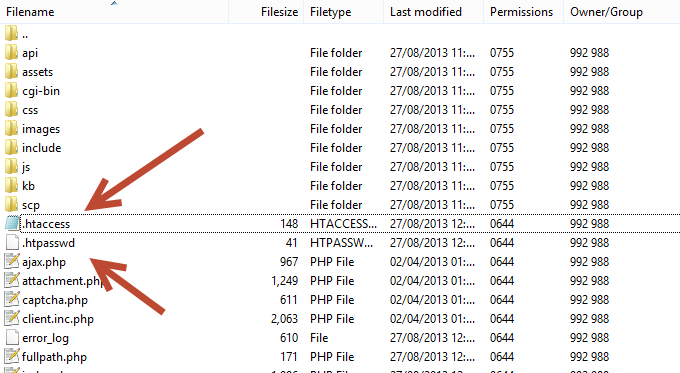
    Create 2 files .htaccess and .htpasswd in the file directory you want to protect and copy paste the codes from the above site to the respective file.

    htaccess location for password protection

    Finding the path of of the folder where you will be storing your password file (.htpasswd)

    This is for people who don’t know the full path of your site directory.

    Visit http://www.htaccesstools.com/articles/full-path-to-file-using-php/ and follow the instructions to find your full path of your site directory.

    I have tried to keep the steps as simple as possible. If you run into some error, let me know through the comments and I will help you sort it out.

  • Made – Responsive Review/Magazine Theme – Review

    Made – Responsive Review/Magazine Theme – Review

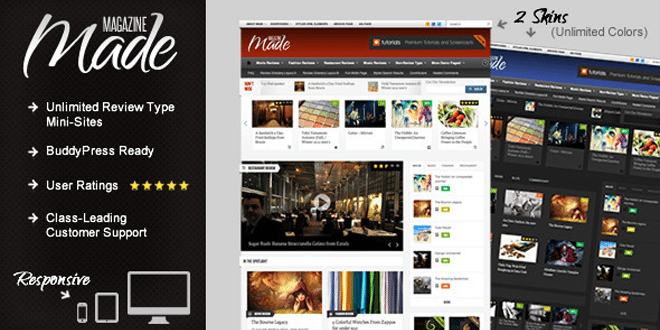
    Made is a review/magazine BuddyPress theme by IndustrialThemes. I have been using Made for a year now on my website which I will be closing down soon. This theme will be perfect for you if you are planning to run a site which focus on Films, TV Shows, Reviews of any kind, etc….. Below are some of the awesome features provided in Made.

    Features

    • Supports BuddyPress & bbPress
    • User Rating
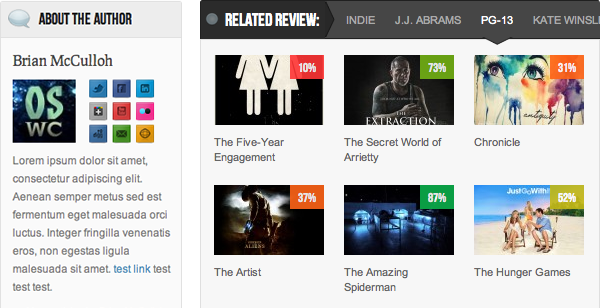
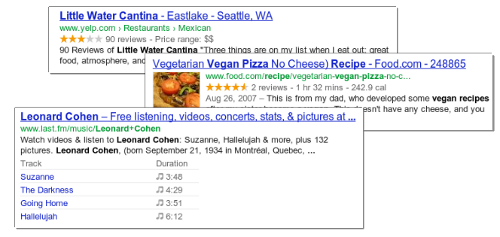
    • Google Rich Snippets support (Reviews will show up in Google search results)
    • 80+ shortcodes
    • “About the Author” Box
    • Unlimited review mini-sites
    • Responsive
    • Awesome Support

    When I purchased the theme it was being sold for $45, now they have increased it to $50. They have added many new features also.  This review was written when Made v2.5 was out. One of the best things I like about them is they release an update as soon as a new WordPress update is out.

    Now I will be talking about some key things that I liked about Made.

    Review system

    • My site was a movie news portal and review site. At first I had 2 mini-sites one for film review and one for music video reviews. None of your mini-sites will look alike as the theme has 50+ theme options for each review type.
    • User ratings – User ratings is integrated to the comments and the review display box. 
    • Google Rich Snippets: Your rating will be shown in Google Search results.
    • We get 4 ways to display the review, which are,
      1. Numbers
      2. Percentages
      3. Letter grades
      4. Stars (Different colors available)

    For any support you can visit http://industrialthemes.ticksy.com/ and they will help you. Their support is amazing. You will never regret in purchasing the theme. All the support they provide is free of cost.

    For more details visit Made‘s page on ThemeForest. Preview Made theme here. Below find a video showing all the back-end elements of Made.

    Download | Preview

  • Best Way to Protect BuddyPress from Spam

    Best Way to Protect BuddyPress from Spam

    I was getting really annoyed with all the spam registrations on my BuddyPress site. Tried different plugins to stop spam and most of them failed, including Google’s reCAPTCHA. I was surprised when the spammers got through reCAPTHA. Whatever spam plugin you use, don’t use the below mentioned plugin.

    • Don’t Use

    BuddyPress Honeypot

    If this plugin worked properly this would have been the best plugin to stop spammers from registering on your site. I liked it because it creates an extra text field that is hidden via CSS. The visitor never sees the field, but spam-bots will usually fill it out so they don’t miss any required fields. The hidden field is a honeypot that traps the bots. Cool, isn’t it? But looks like it’s broken.

    • Safe to use

    BuddyPress Registration Options

    This plugin will not automatically block spammers, but you will have to manually deny their accounts. The plugin allows admins new member moderation, if moderation is switched on, any new members will be blocked from interacting with any BuddyPress elements (except editing their own profile and uploading their avatar) and will not be listed in any directory until an admin approves or denies their account.

    You will get an email every time a new user registers. This is the best free plugin out there which I have tried. If you have ever come across a better one, please let me know. I hope this plugin will help you protect BuddyPress from Spam.

    Image Courtesy: Brian Chantler

  • Remove WordPress Multisite data

    Remove WordPress Multisite data

    In this post I will cover how to remove WordPress multisite data which you created while enabling WordPress multisite.

    You can find many tutorials on how to enable Multisite and people who follow them sometimes get stuck in between of the process and might want to restart the process or sometimes don’t want to use multisite. But when you restart the process, WordPress says you already have a network enabled. So to restart you will have to remove WordPress Multisite Data from your WordPress install.

    Before proceeding, please create a backup of your database so you can restore it if something goes wrong.

    • Remove all the lines added to wp-config.php
    • Revert back to older. htaccess file or delete it and regenerate it by going to Settings > Permalinks
    • Remove the two fields added to the users table that are multisite-only (deleted and spam columns).
    • Remove the following tables in database (prefixed by your DB prefix which is generally wp_):
        • wp_blogs
        • wp_blog_versions
        • wp_site
        • wp_sitemeta
        • wp_signups
        • wp_sitecategories (if you have global terms enabled)
        • wp_registration_log

    Your WordPress multisite data is now cleared and you have a fresh WordPress install.