Tag: Security

  • Create a Ultra Strong Password and Protect yourself Online (Infographic)

    Create a Ultra Strong Password and Protect yourself Online (Infographic)

    Last month I wrote about “Top 25 Worst Passwords“. If you are still using a weak password, you are an easy target for a hacker. Your online life is in great danger.

    There is no use worrying after someone takes hold of your accounts, especially your online bank details. Basically your whole online life is at stake with weak passwords.

    So do you know what a strong password means? There is nothing called hack-proof passwords. Every password can be cracked, but depending upon the complexity of the password, the time taken to crack a password can vary from 1 min to 1.49 million centuries.

    Some of the best practices I use to protect my online life include using lower and upper case characters, using numbers and special characters, keeping password length more than 10 and changing passwords every 2 months.

    Try to use different passwords for different sites, this reduces the risk of getting all your account hacked if one of the sites you use gets hacked and data is leaked. Recently the HeartBleed bug shook more than 60% percent of internet. Read more about this on the official site. No case of data leakage due to HeartBleed was reported. God knows how many sites were compromised before the bug was discovered. Better to change all the passwords. But before changing the passwords make sure that the website you are changing the password has rolled out a fix for the bug. It’s pointless changing the password before the server is fixed. You can check the blog of the site and find out whether they have fixed the issue. Most of the sites mailed it’s users about the bug and about the fix they have implemented.

    Check out the infographic below and find out more practices you can do to create an ultra-strong password.

     

    Create an ultra super strong password
    Source: WhoIsHostingThis?

  • Top 25 Worst Passwords of 2013

    Top 25 Worst Passwords of 2013

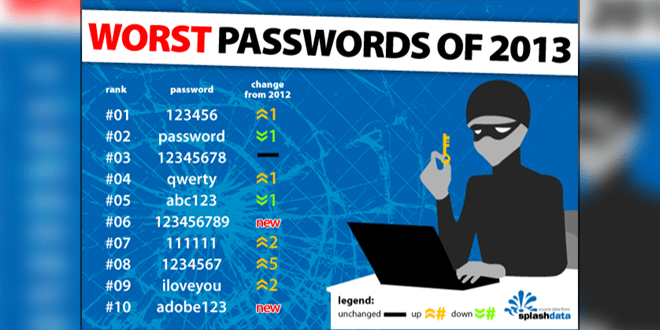
    SplashData has revealed their annual “Worst Passwords” list for 2013. They have published 25 worst passwords and also added that 2013 was the year which saw the most cyber crime. 123456, password, 12345678, qwerty and abc123 are the 5 top most worst passwords on the list. SplashData used the data from adobe’s breach few months back.

    Below, check out the 25 worst passwords.

    1. 123456

    2. password

    3. 12345678

    4. qwerty

    5. abc123

    6. 123456789

    7. 111111

    8. 1234567

    9. iloveyou

    10. adobe123

    11. 123123

    12. admin

    13. 1234567890

    14. letmein

    15. photoshop

    16. 1234

    17. monkey

    18. shadow

    19. sunshine

    20. 12345

    21. password1

    22. princess

    23. azerty

    24. trustno1

    25. 000000

    If your password is the above list, it’s time to change it. 🙂

    Source: SplashData

  • Password Protect a Website or Sub-directory: Steps

    Password Protect a Website or Sub-directory: Steps

    Recently I was setting up a back-end admin page for a site and I wanted it to be only accessible by admins. So I came across an article by Chris Coyier on css-tricks.com. But the article was for advanced users. A newbie like me will end up getting errors. I ended up getting 500 Server error and after hours of Googling I was able to set it up properly. Follow the steps below and you will be able to password protect a website or sub-directory in no time.

    Steps:

    Creating .htaccess and .htpasswd files

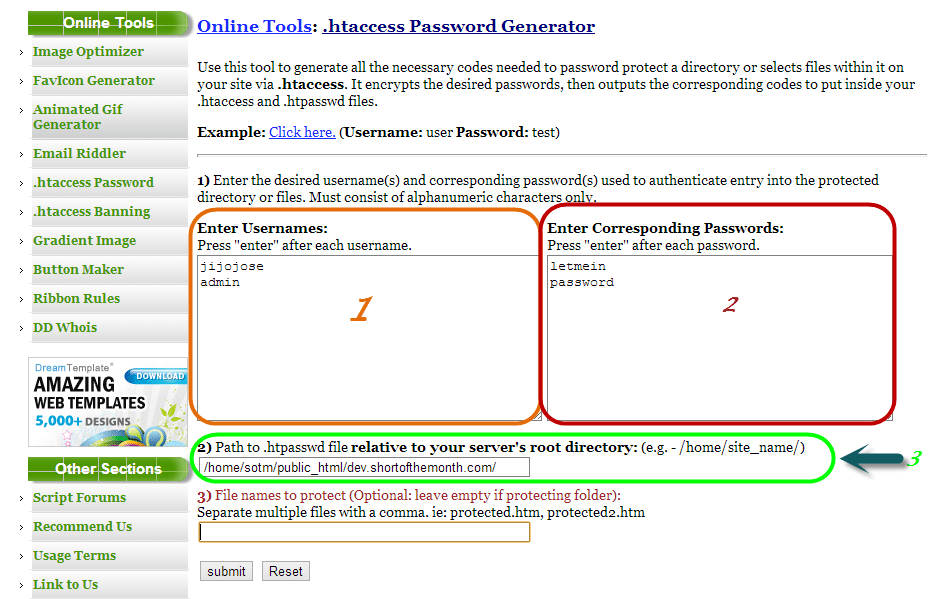
    Visit http://www.tools.dynamicdrive.com/password/ to generate the contents for your .htaccess and .htpasswd files. It’s a free online .htaccess Password Generator.

    password protect website

    1. Enter usernames, one per line
    2. Enter passwords for the usernames on the left
    3. Enter filepath where you will be storing your .htpasswd (If you don’t know the filepath, read the end of the article).
    4. Submit

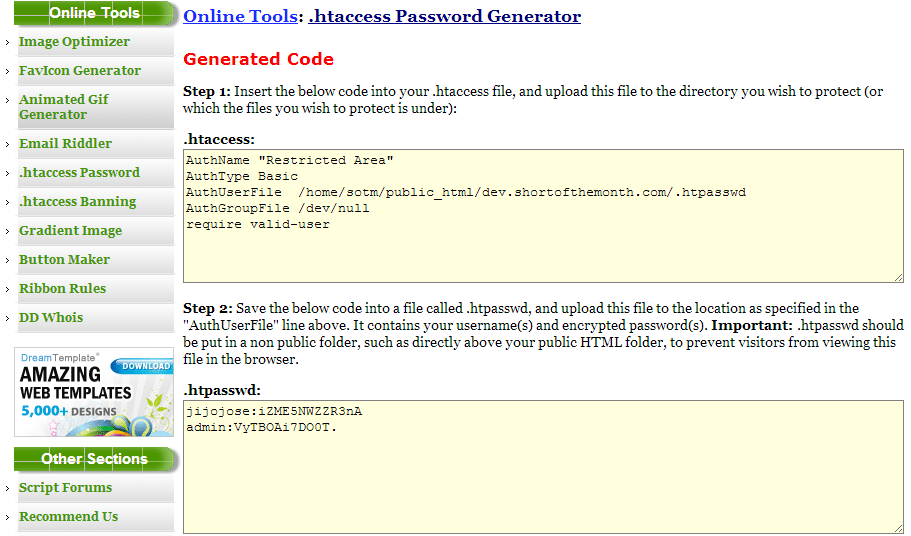
    After submitting you will get a page with your .htaccess and .htpasswd codes.

    htacces password generator

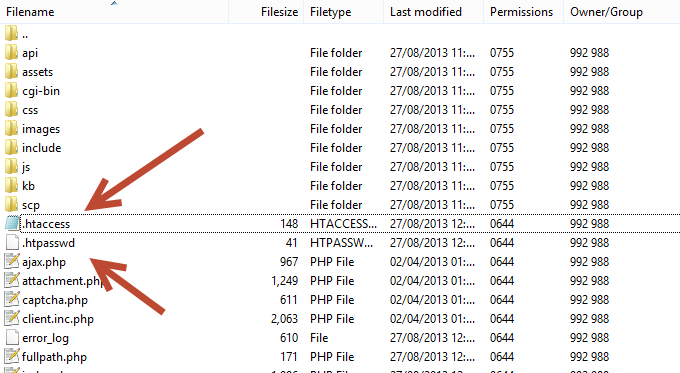
    Create 2 files .htaccess and .htpasswd in the file directory you want to protect and copy paste the codes from the above site to the respective file.

    htaccess location for password protection

    Finding the path of of the folder where you will be storing your password file (.htpasswd)

    This is for people who don’t know the full path of your site directory.

    Visit http://www.htaccesstools.com/articles/full-path-to-file-using-php/ and follow the instructions to find your full path of your site directory.

    I have tried to keep the steps as simple as possible. If you run into some error, let me know through the comments and I will help you sort it out.