
In this quick tutorial I will show you how to export spaces from Catch notes and also how to import it to Evernote.
Exporting from Catch Notes:
- Log into your account at Catch.com
- Go to this link: https://catch.com/tools/
export/new (Site Dead)
The Export Tool is organized into three panels:
- The first panel provides a way to download all of your content as either a CSV file or a Zip file.
- The second panel provides a way to download a single space as a Zip file.
- The third panel provides a way to download all content for a particular year as a Zip file.
- Select one of the “.zip” methods (not CSV).
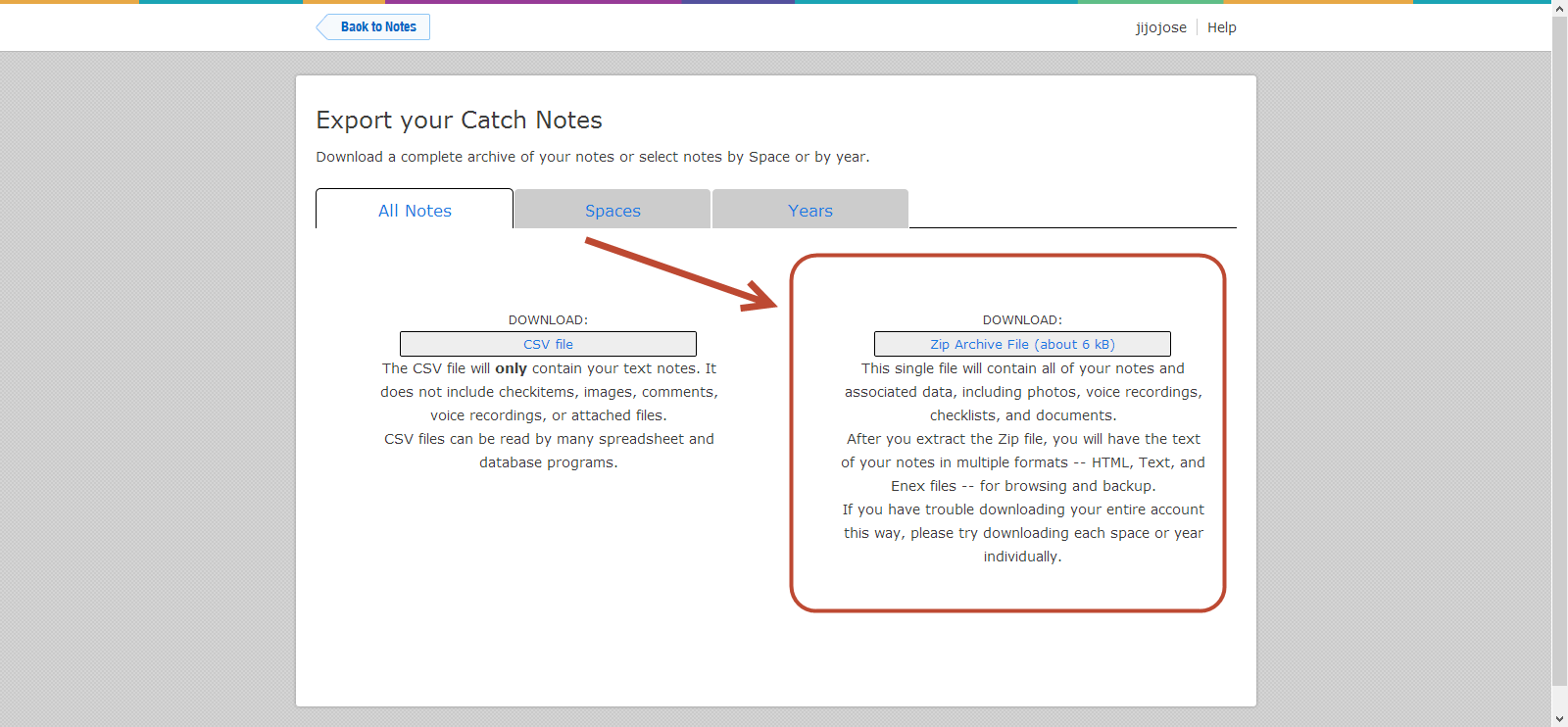
- When you click “Download”, your browser will start downloading the selected content. This can take anywhere from a few minutes to several hours depending on the size of your account and the speed of your Internet connection.
- Unzip your Catch .zip file
- Download the Evernote desktop app (Mac or Windows)
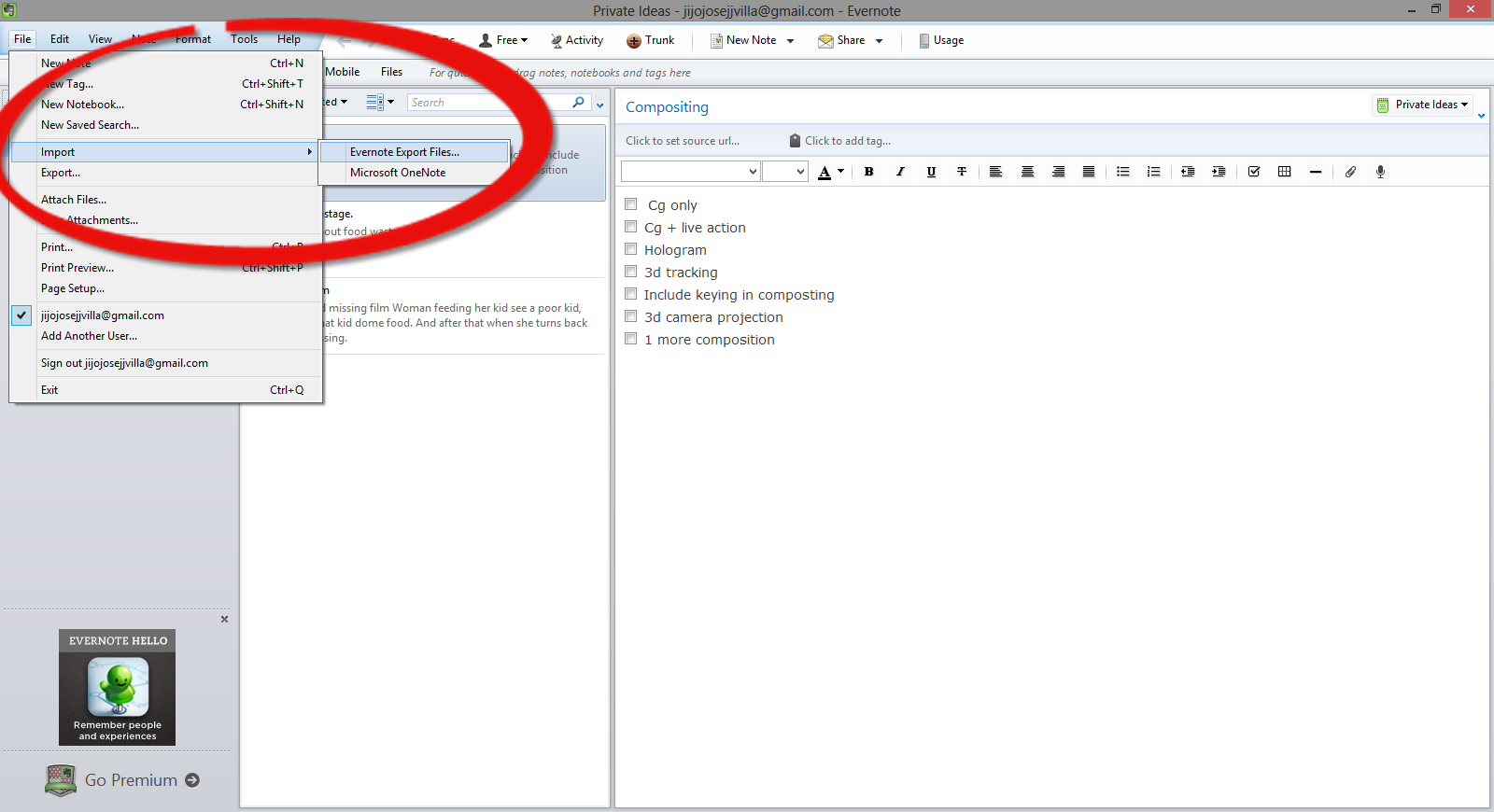
- Open Evernote app and select, File>Import>Evernote Export Files
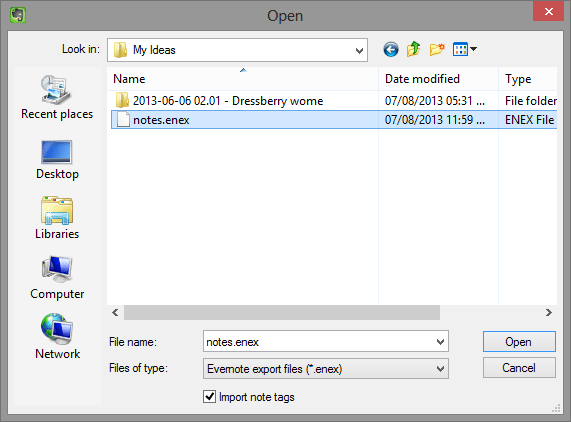
- Navigate to the folder where you extracted the Catch Notes.
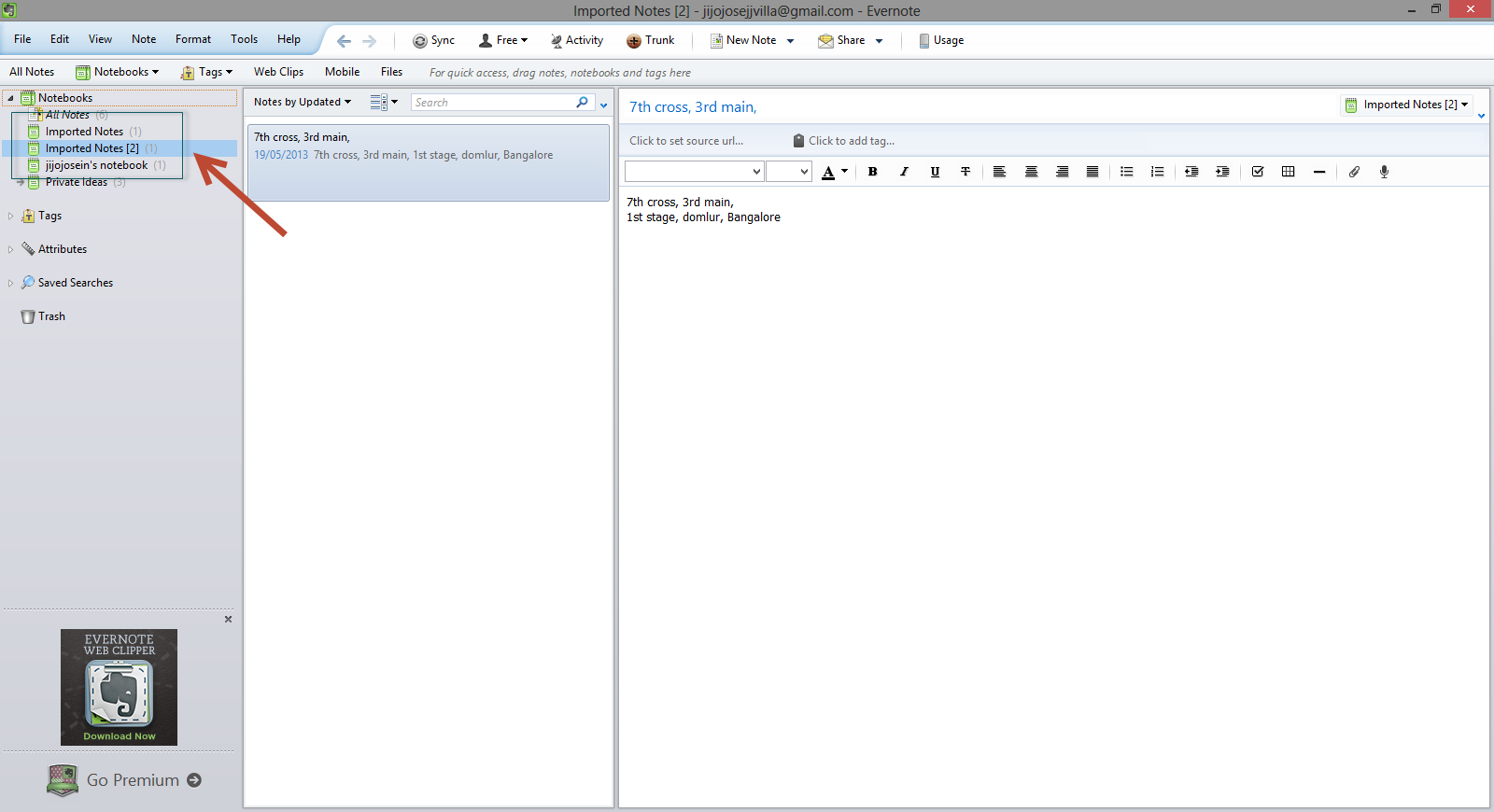
- You will find it in Evernote in a new notebook, with the title of “Import Notes.”
Hope this article helped you. If you are new to Evernote and would like to get a premium account, check out our giveaway here.
