Spotify Free users will understand the pain of listening to those annoying ads. The worst part is they keep on repeating the same jingle for a week. Spotify ads are the most annoying thing I’ve ever heard. You know what happens if you decrease the volume (Spotify or system volume). If you haven’t tried decreasing the volume during an ad, try it. You will notice that the ad pauses. Brilliant idea by developers, but a pain for our ears.
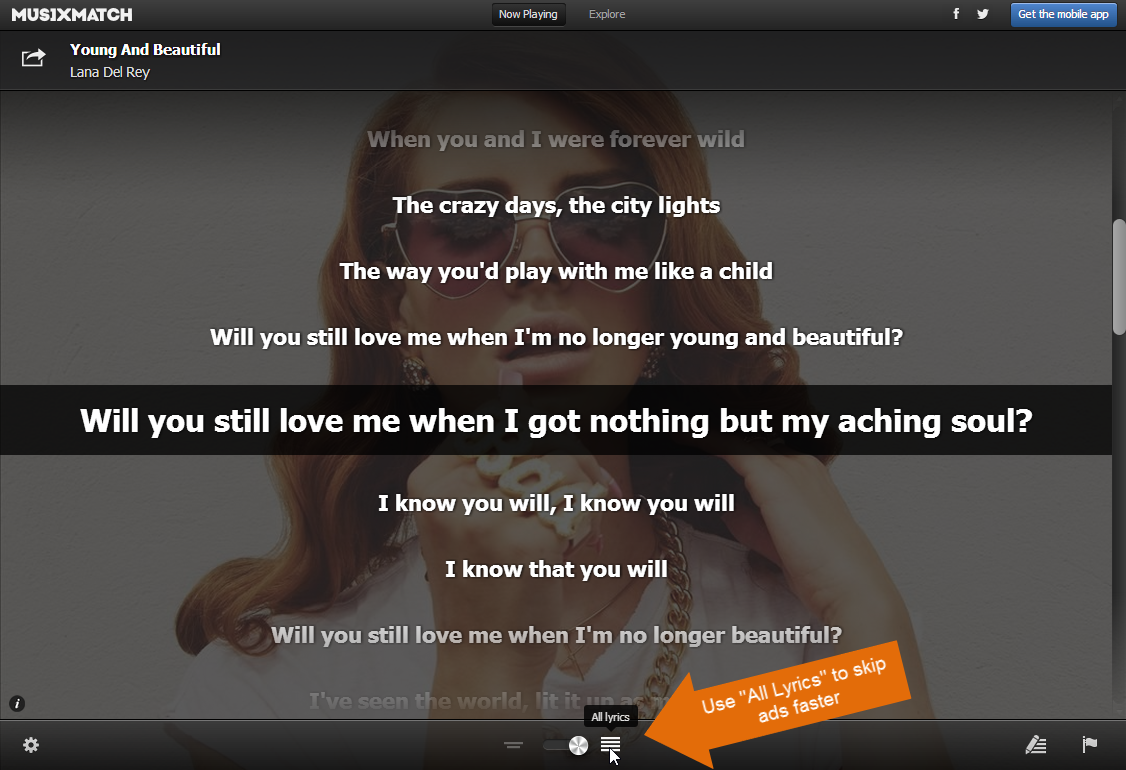
Now lets see how to skip Spotify ads. We are going to do this without any help of any external or 3rd party software. First, you need to install the a Spotify app called “MusiXmatch”. Use the App Finder to get the app. SO how a lyrics application going to help us, right? If the app is open before an ad starts, you can click on the lyrics to fast forward the ad. Check out the video to see how I did it.
Easy, right?
Let me explain this again:
- Install “MusiXmatch” inside Spotify
- Use “Musixmatch” while listening
- Once the ad starts, click on the bottom of the lyrics, which is on the screen. You don’t have to scroll down to the end, just click on the lyrics, which is shown on the screen. (See video)
- Optional: Use the “All Lyrics” option to skip faster (see image 1)
- Enjoy, ad free Spotify. 🙂
In my opinion, this is not against Spotify rules. We are using a Spotify app and not any 3rd party software to skip the ads. We didn’t tamper with the app so that the app behaves like this. It’s already there and we are just using it.
I didn’t want to share this trick when I found it, but sharing is caring. So enjoy. Free Spotify without ads. Make sure you don’t post this on Spotify official channels, chances of getting this patched will be high. Let’s enjoy free Spotify for sometime.